
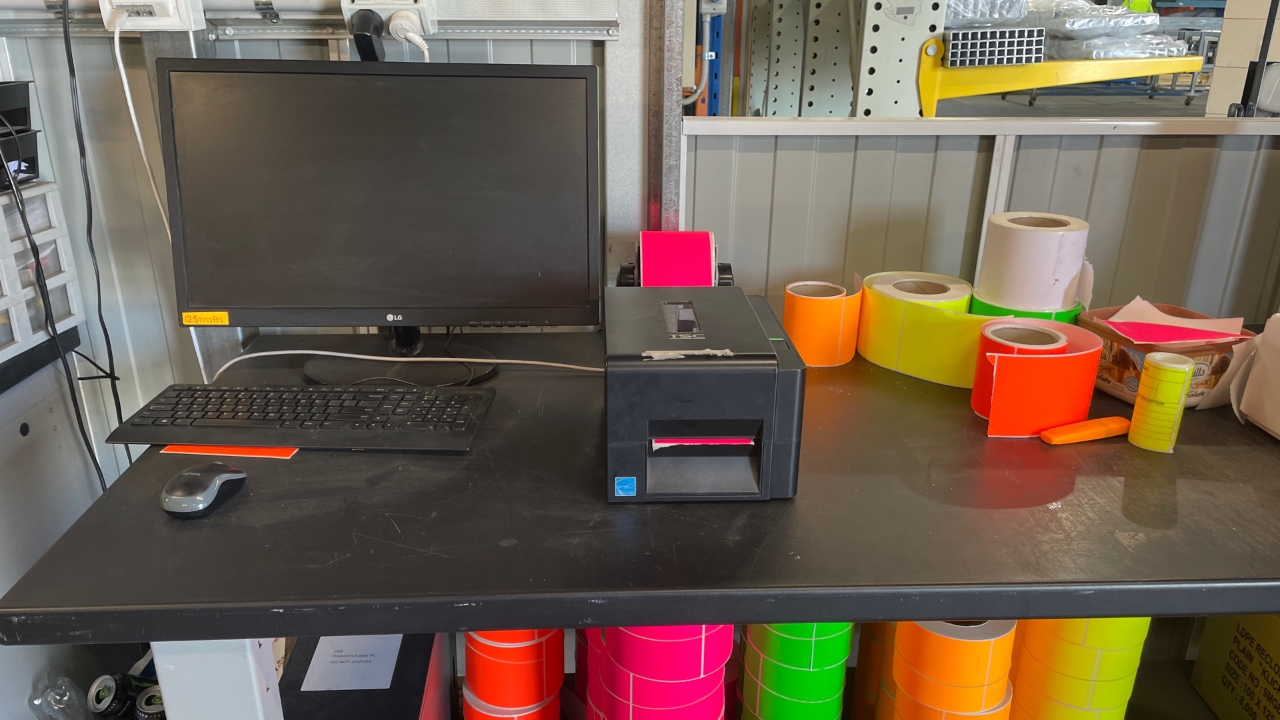

Turn the computer on.

Type in the password. 12$trath

Click on STORCO Lable V6

This excel should come up.
Find the contract number on the paperwork, then find it in the list.

Type the contract number in the highlighted area. Leave everything else blank.
Press control (Ctrl) and P on your keyboard to bring up the print screen.
Or you can click on file, then click on print to bring up the print screen. Add in how many stickers you need, then click print.

Sticker Key. Different areas have different colours. Please check the colour and the place before printing the stickers.

Sticker printer. If you need to change the sticker colour, follow the next steps.
Lift the top of the printer off.
Press the gren push button to lift the printing cartliage up.
Carefully lift the sticker roll out of the printer.

Different colours of stickers.
Put the roll inside the roll of stickers.
Put the new roll on.
Carefully feed the stickers through the printer.

Make sure the stickers is under the green tabs.
Close everything and press the feed button to feed out one sticker to make sure everything is lined up and working, after it have run through, tear the sticker off carefully. Then repeat steps 1-8 to print.