
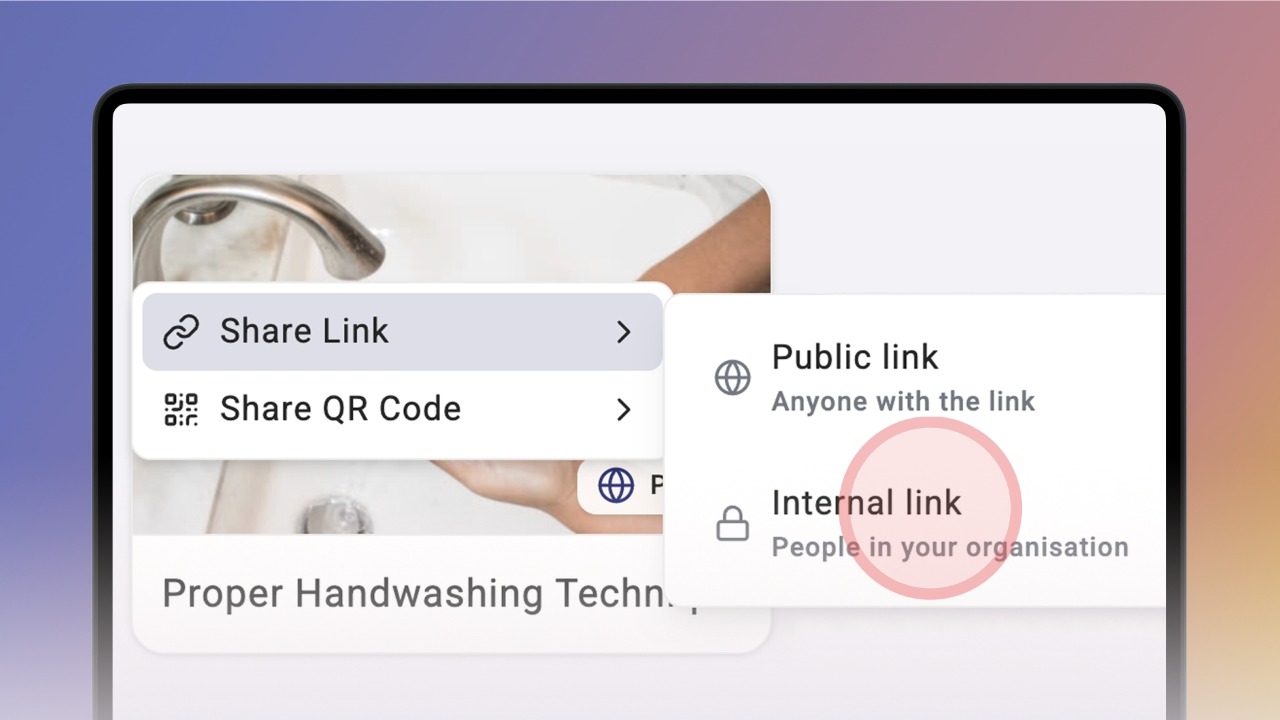

Once a knowby is published, you can share it. The sharing options you see depend on its access level:
For Internal (entire organisation) knowbys, you can share a link or QR code that works for all internal users in your organisation.
For Public (anyone on the web) knowbys, you can choose a link or QR code that works for everyone,even without a Knowby account, or restricted to internal users only.
To share, hover over a knowby card on the home screen and click the share icon next to the three-dot menu.
You can also share from the Share button in the top bar while viewing a knowby, or from Knowby Details.
If your knowby is Public, the sharing window shows two tabs — Internal and Public — so you can pick the right audience.
💡 Not sure how to make a knowby public?
See this guide →
When sharing a QR code, choose what appears on it — title, description, cover image, logo, and organisation name.
Once it looks right, click Download to save it to your device as an image.
From Knowby Details, you can also email a copy of the knowby as a PDF.
Your own email is filled in by default — add more addresses separated by spaces, then click Send.
⏱️ It'll land in the inbox within a few minutes, depending on file size.
From Knowby Details, you can also copy the embed code to add the knowby to another tool or website.
Note: this option is only available for Public knowbys.