
Form answers don’t have to stay in Knowby. Send them to the systems your team already uses — for example, inspection results to your maintenance system or training answers to your HR tool — so nobody has to copy them over by hand.
In Knowby Studio, open the Steps tab and select a step. Click Form.
Click Add field, open the field type list and choose a choice field — for example, Single choice.
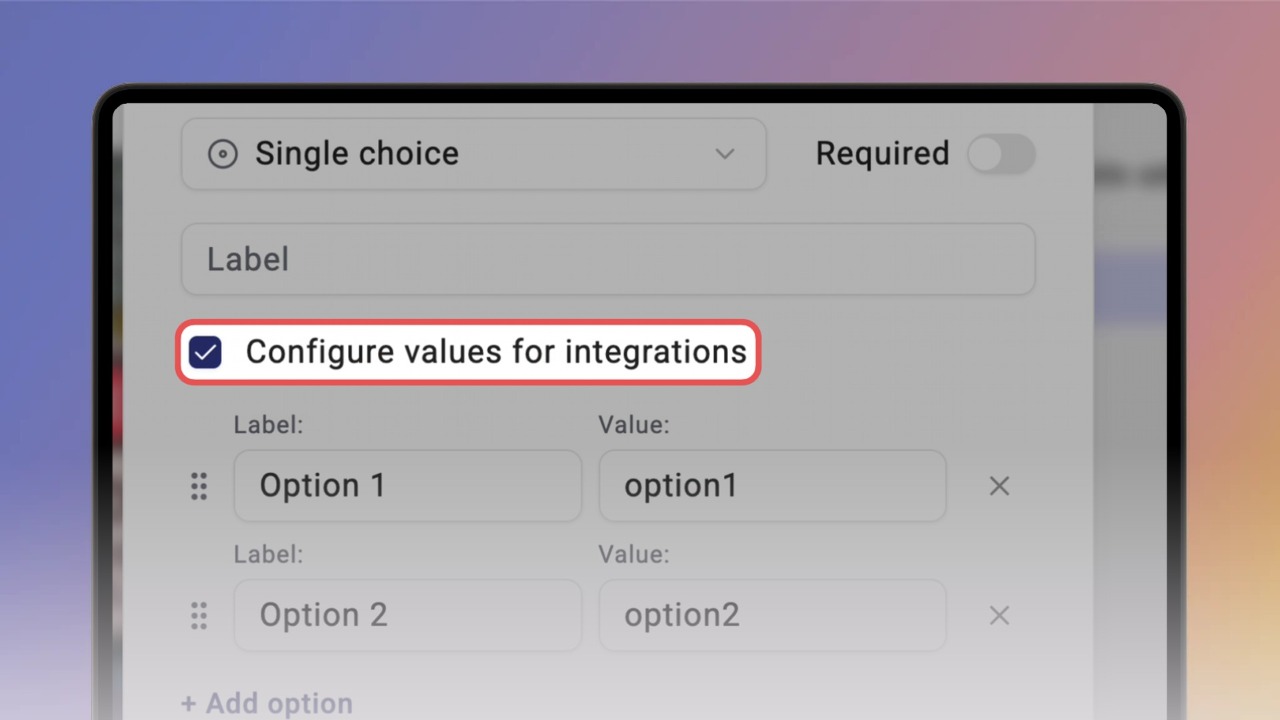
Tick Configure values for integrations. Each option now has a Label people see and a Value your systems receive.
Enter the question and options, set their values and click Save. The form appears in the step.
Tip: Values work for Multiple choice and Dropdown fields too.
When someone completes the knowby, the answers are sent in the event data under fields — with each question's label, fieldType and value. To receive them, set up a webhook — see the "Set up an event subscription" guide.