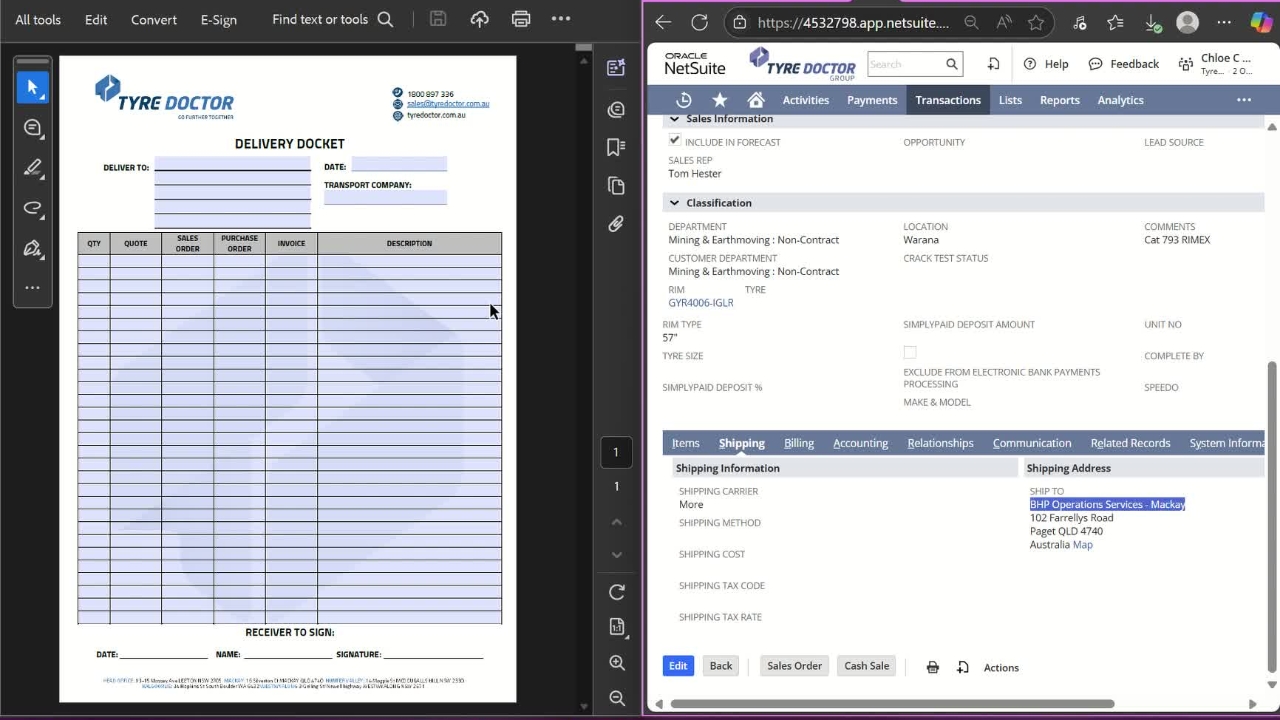
Email (or sometimes phone call) requesting a Delivery Docket will be received listing Quote Numbers to go.
Add each quote number to a tab in Netsuite.
All the information you need will be provided here & will show the relevant customer.
Find "POD Fillable forms" in Sharepoint.
Select the customer's name.
If there is no fillable form for that customer, select the blank template.
Scroll down in Netsuite job to find "Shipping" and add these details to the Delivery Docket.
*only required for the blank forms*
Start filling in the required boxes starting with Qty & Quote Numbers
Select "Related Records" and click the 'Sales Order" to bring this up & begin adding Sales Order Number & PO Number from this screen.
If job has no sales order, refer to "Creating Sales Orders on Completed Jobs"
For invoicing, refer to "Invoicing Sales Orders"
Add top line description for repair jobs like this.
Rims & Tyres will need ID Serial Numbers added too. Copy this over from the job.
Save!
Sharepoint Operations Folder "Delivery Dockets" > "Original"
Save under the customer name, if there is no folder, add to "MISC"
Name: "DD 'Customer' 'date'
Email this to requestor.