
When processing credit card payments, always verify the following:
-Name of the caller
-Company name
-BOQ/SO#/Invoice Number
-amount to be paid
-email address for the receipt
For BOQ it is usually on
>>Deposit
>>Deposit Amount

For Sales order
>>Deposit amount or
>> Balance due

No Surcharges for VISA & Mastercard payments
VISA: Card# starts with # 4
Mastercard: Card# starts with # 5
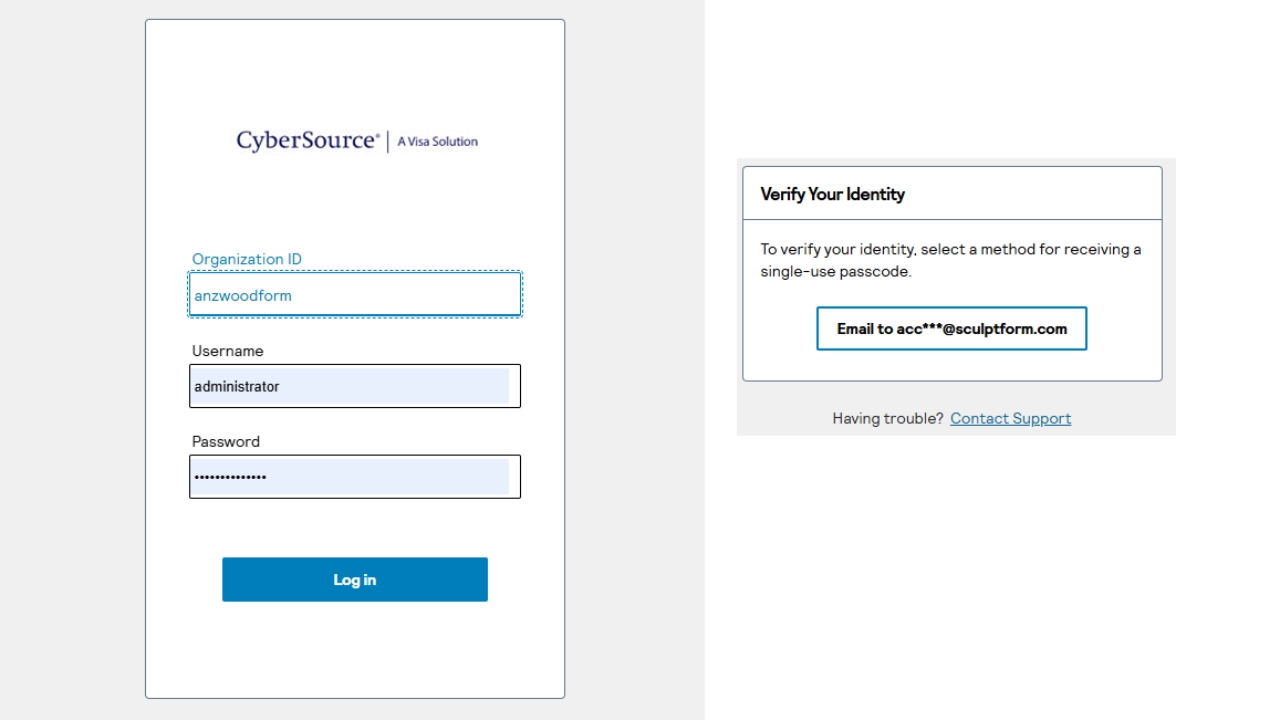
Login details are:
Website: https://anz.ubc.cybersource.com/ebc2
Organization ID - anzwoodform
Username - administrator
Password – Timber122025@!
(Password is always changing by time, always update SOP).
Email Support- ANZeCommerceSupport@anz.com
Phone Support- 1800 790 230

Upon logging in, it goes to dashboard
Go to left side of the screen, click & enter the ff:
>>Virtual Terminal
>>One-Time Payment
Enter:
>>Amount
>>BOQ# / SO# / INV#
Always check the total AUD if correct
>>Next

Enter the Information of the customer:
>>First & Last name
>>Company name
>>Address: ( - )
>>Email Address: caller or usually to customer accounts email address.
>>Next

Double check information if correctly entered.

Proceed with entering Credit Card Details
Do not tick the "Card holder agree to save..."
Check Total AUD
>>Submit
A pop‑up message will appear — always select Disagree to save customer card details.
After submitting, the system will indicate whether the payment is successful or unsuccessful.
If the payment is unsuccessful, call the customer back and verify the card details again.

For able to confirm the transaction.
it could be found at
>>Transaction Management
>>Transactions
Could also download receipt, open the request ID# and download receipt.

Record the transaction to Direct Deposits - EFT file with "Eftpos" note