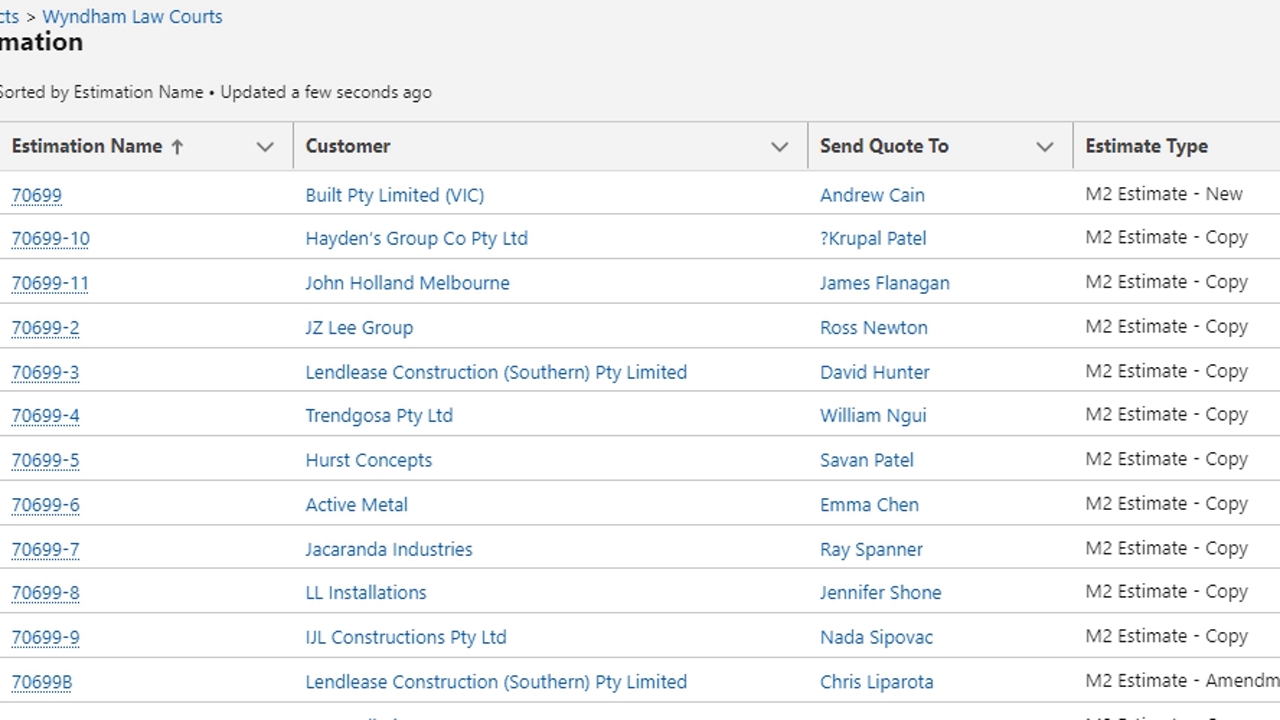
Find the project card in Salesforce and click onto the 'Estimation' quick link on the right hand side. As there are no quotes to copy from, click the 'New' button in the top right corner. Then click 'Next' which brings up the first page to be filled out.
The main fields on this page to filled have a red * next to them. They are: Estimate Type, Currency, Customer, Send quote to, Architect, Price Category, Lead Time and Delivery State. This information can either be found from the drawings or the case for the request.
To create the sqm rate, click 'sqm rates', 'New' and the product that is being priced. Then fill in the specification details - the fields will vary depending on the product selected. Make sure thaat all the information is correct and to fill in the total m2 from the mark ups. Put any TBC's or assumptions in the notes.
Once the specification data is filled in, enter the same data into the Price and Spec pricing tool to put into the Salesforce estimate under 'Supply Investment. Make sure the correct pricing bracket is selected.