
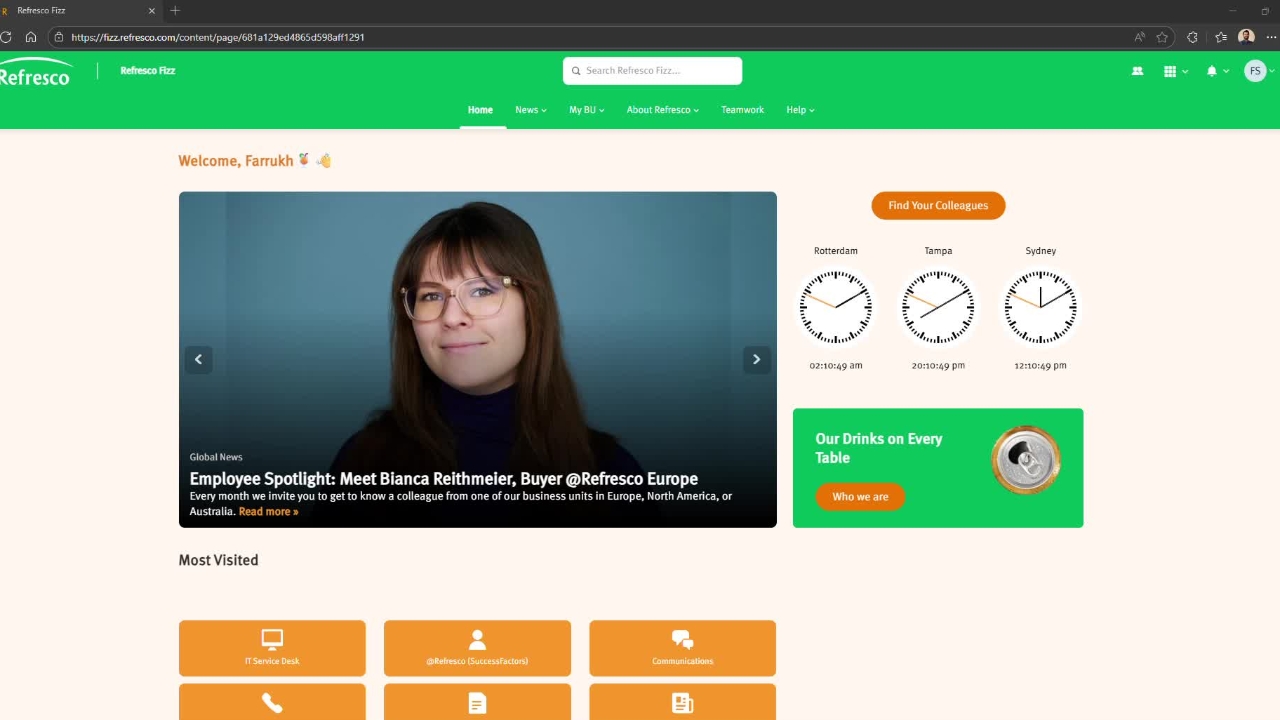
Navigate to fizz.refresco.com, Under My BU > Digital Forms > Digital Form - Expenses Substantiation.
Read the procedure before filling out a form.
All your details will be pre‑filled in the form. If any errors are detected, a notification will appear at the top of the form. For example, if the Period Ending Date selected is in the future, an error message will be displayed indicating that the date cannot be set to a future value.
Select the appropriate expense type and enter the total expense amount. GST will be calculated automatically. Please note that any expense exceeding $82.50 must be accompanied by a valid receipt in order to claim GST.
Provide a reason for the expense and enter the date on which the expense was incurred. If a future date is selected, the system will display a notification indicating that the date cannot be in the future.
If you have a receipt for the expense, select Yes and attach the corresponding file. Please ensure that each attachment has a unique filename when uploading multiple receipts.
If you are entering multiple expenses, please scan all related receipts into a single file and attach it on the first entry line. For subsequent lines, select No for the receipt option and include a note indicating that all receipts have been attached above.
Your workflow is automatically adjusted based on the Delegation of Authority. Each manager has a defined approval threshold, and requests are routed accordingly.
Enter any additional details you would like to provide.
Click Submit, and you will receive an email confirming that your form has been successfully submitted once the workflow has begun.
You can view the status of your application by navigating to Teams → Approvals → Sent.
Once your reporting manager approves the request, the expense will be forwarded to the Finance team for further processing.