
WideTrac - Adjust Spreading Settings
This Knowby will run you through step by step on how to Adjust Spreading Settings for a WideTrac
This Knowby will run you through step by step on how to Adjust Spreading Settings for a WideTrac
1
Step 1 of 7
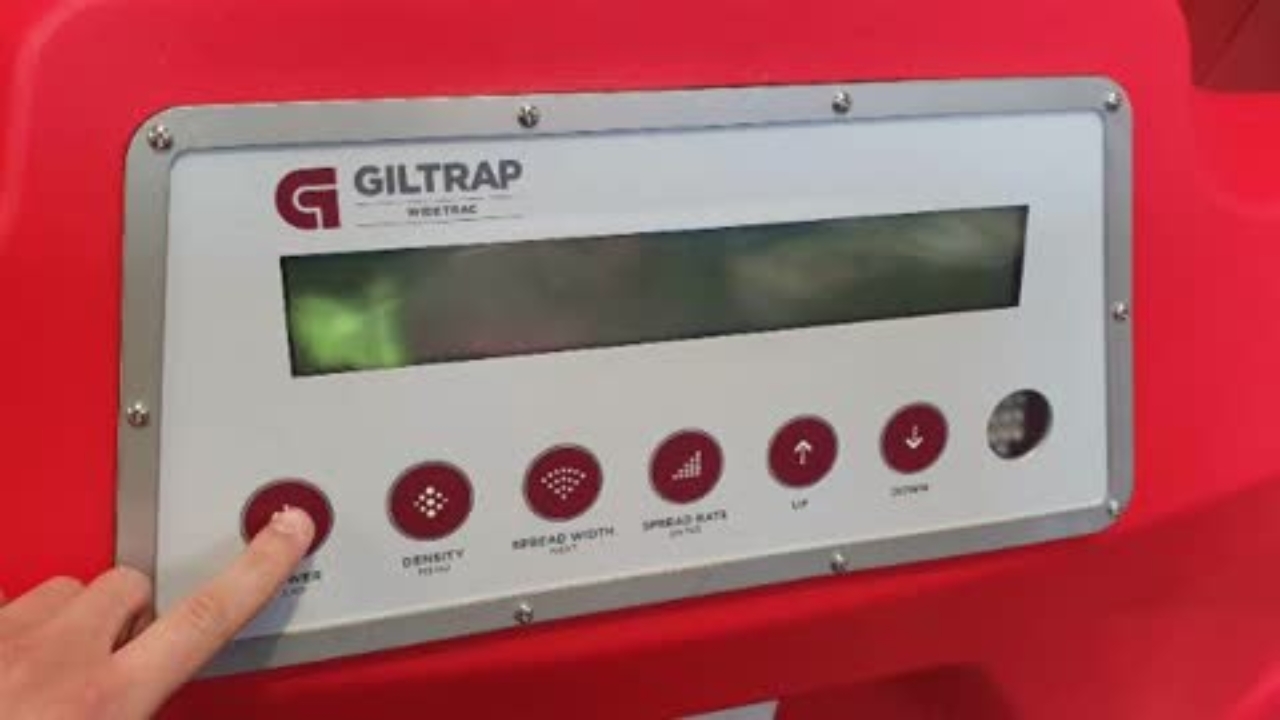
Power the controller on using the top button of the remote or the power button on the controller
2
Step 2 of 7
Press the "Density" button to enter the density menu
3
Step 3 of 7
Use the up and down arrows to adjust value to match measured weight. See: "Measuring Bulk Density of Product"
4
Step 4 of 7
Press the "Spread Width" button to enter the spread width menu
5
Step 5 of 7
Use the up and down arrows to adjust value to desired width
6
Step 6 of 7
Press the "Spread Rate" button to enter the spread rate menu
7
Step 7 of 7
Use the up and down arrows to adjust value to desired rate. Tip: Press the "Spread Rate" button to select individual numbers to adjust