Knowby Sculptform
Knowby
Sculptform NZ Task lists and Process
Sculptform NZ Pty Ltd - Task lists and Note Note: Sculptform NZ Pty Limited financial year is 1 April to 31 March each year. E.g., 1 April 2023 to 31 March 2024 & GST is 15%
1
Step 1 of 25

Sculptform NZ Pty Ltd - Task lists and Note

Sculptform NZ Pty Limited financial year is 1 April to 31 March each year. E.g., 1 April 2023 to 31 March 2024 & GST is 15%

  1. Uploading the NZ bank file in NZ MYOB -Weekly (Friday)

  2. Bank feed processing - Weekly.

  3. Entering Supplier invoices – Weekly (Process is the same as Sculptform AU)

  4. Sending Ken all the invoices for payment 

  5. GST report – Every two Months 

  6. GST return Lodgment - Every two Months lodge by Accountant (Colbert Cooper)

  7. Balance Sheet Reconciliation – Monthly 

  • 1-1110 Cheque

  • 1-1693 Inventory

  • 2-8832 Customer Deposits – Mei 

  • 2-8891 GST Paid

  • 2-8892 GST Collected

  • 2-8900Running Balance A/C

2
Step 2 of 25
<p>1.Bank Feed – For New Zealand we need to upload a bank file in MYOB for processing. Send Ken an email to check the NZ bank account to see if there are any transactions to process, if there are any, he will send back a bank file. Copy and paste this file to your download folder or your OneDrive.</p><p>Upload NZ bank file in MYOB (From Web version MYOB)</p><ul><li><p>Go to Banking</p></li><li><p>Click Bank Transactions</p></li><li><p>Click Import transaction (See top right side)</p></li><li><p>Click Import Statement file.</p></li><li><p>Click Browse and select the file and click import.</p></li></ul><p></p>

1.Bank Feed – For New Zealand we need to upload a bank file in MYOB for processing. Send Ken an email to check the NZ bank account to see if there are any transactions to process, if there are any, he will send back a bank file. Copy and paste this file to your download folder or your OneDrive.

Upload NZ bank file in MYOB (From Web version MYOB)

  • Go to Banking

  • Click Bank Transactions

  • Click Import transaction (See top right side)

  • Click Import Statement file.

  • Click Browse and select the file and click import.

3
Step 3 of 25
<p>Click Import Statement file.</p><p>Click Browse and select the file and click import.</p>

Click Import Statement file.

Click Browse and select the file and click import.

4
Step 4 of 25
<p>Click Open and Import</p>

Click Open and Import

5
Step 5 of 25
<p>Click Open and Import</p><p>Bank transactions > Status (Unallocated)
Process the deposits and withdrawals the same as you would in MYOB AU</p><p>2.</p><p>Processing NZ Bank feeds</p>

Click Open and Import

Bank transactions > Status (Unallocated) Process the deposits and withdrawals the same as you would in MYOB AU

2.

Processing NZ Bank feeds

6
Step 6 of 25
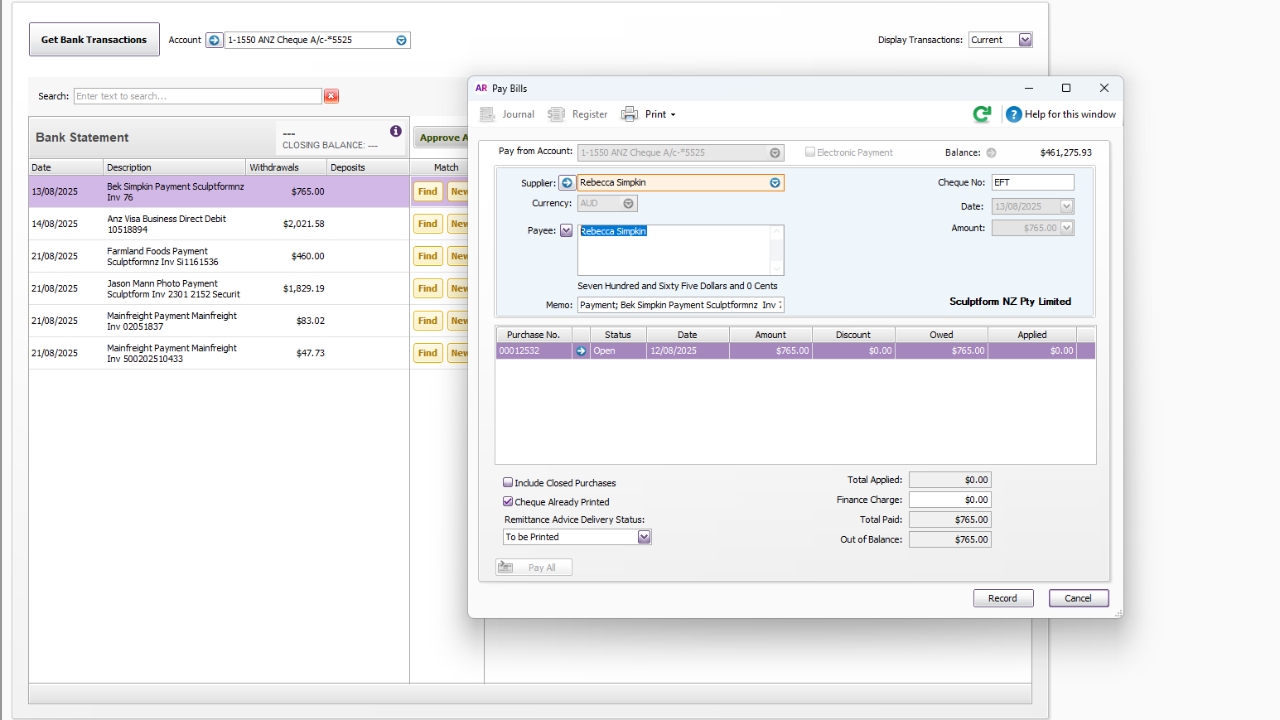
<p>If it's an invoice payment – click new &amp; click Pay bills</p>

If it's an invoice payment – click new & click Pay bills

7
Step 7 of 25
<p>Clicked applied & Record</p>

Clicked applied & Record

8
Step 8 of 25
<p>Clicked applied &amp; Record</p><p></p>

Clicked applied & Record

9
Step 9 of 25
<p>3.Entering supplier invoices</p><ul><li><p>Drag the invoice in In – tray</p></li><li><p>Check supplier name </p></li><li><p>Check date of the invoice </p></li><li><p>Check invoice number </p></li><li><p>Check account number </p></li><li><p>Check amount </p></li><li><p>Check Tax - GST, NT or GST free &amp; change according as per invoice </p></li><li><p>Check Payment terms &amp; adjust as per invoice due date </p></li><li><p>Click Record Note - If it’s a new supplier you will need to create a new supplier card before entering an invoice in MYOB</p></li></ul><p></p>

3.Entering supplier invoices

  • Drag the invoice in In – tray

  • Check supplier name

  • Check date of the invoice

  • Check invoice number

  • Check account number

  • Check amount

  • Check Tax - GST, NT or GST free & change according as per invoice

  • Check Payment terms & adjust as per invoice due date

  • Click Record Note - If it’s a new supplier you will need to create a new supplier card before entering an invoice in MYOB

10
Step 10 of 25
<p>Mainfreight Invoices – Normal Freight invoices</p>

Mainfreight Invoices – Normal Freight invoices

11
Step 11 of 25
<p>Custom – Disbursement invoices
Tax invoice DISBURSEMENT (always change the Purchase No. to DISBURSEMENT and untick the
Tax Inclusive</p>

Custom – Disbursement invoices Tax invoice DISBURSEMENT (always change the Purchase No. to DISBURSEMENT and untick the Tax Inclusive

12
Step 12 of 25
<p>E,g to get Custom GST figure - 8132.35/15*100=54,215.66 – Enter as per below</p>

E,g to get Custom GST figure - 8132.35/15*100=54,215.66 – Enter as per below
13
Step 13 of 25
<p>E,g to get Custom GST figure - 8132.35/15*100=54,215.66 – Enter as per below</p>

E,g to get Custom GST figure - 8132.35/15*100=54,215.66 – Enter as per below

14
Step 14 of 25
<p>Final Look</p>

Final Look

15
Step 15 of 25
<p>GST return- entering in MYOB Process</p><p>•
•</p><p>Any refund put that on 2-2150 Running Balance A/C (NT)
When ken paid it will appear in Bank feed & allocate this payment to 2-1250 ATO Running
account</p>

GST return- entering in MYOB Process

• •

Any refund put that on 2-2150 Running Balance A/C (NT) When ken paid it will appear in Bank feed & allocate this payment to 2-1250 ATO Running account

16
Step 16 of 25
<p>When they the BAS we need to create a journal as per below
Click the</p>

When they the BAS we need to create a journal as per below Click the

17
Step 17 of 25
<p>Click on Use Recurring Journal</p>

Click on Use Recurring Journal

18
Step 18 of 25
<p>Below page will appear
Change last of the month e.g. 31 July & Figure as per BAS Lodgment document
provided by Accountant.</p>

Below page will appear Change last of the month e.g. 31 July & Figure as per BAS Lodgment document provided by Accountant.

19
Step 19 of 25
<p>Intercompany transactions/Inventory Invoices for NZ
Sculptform NZ buy Inventory from Sculptform Australia and sell it to Sculptform NZ’s customer.
When Ken pays from the NZ bank to Sculptform AU to buy inventory, there will be three
scenarios/Transactions on this.
Sculptform NZ buy Inventory from Sculptform Australia E.g. SO-14081 & 14082
I)Buy Inventory (NZ Purchase) – From NZ MYOB
There will need to be a PO/bill (INV-14081) entered in MYOB NZ, so it goes to Inventory (Used
inventory accounts as we are buying goods)</p><p>II) Sales goods to Sculptform NZ (Sales) - Sculptform AU MYOB
E.g. INV- 14081 will be issued from Salesforce, and it will link to Sculptform AU MYOB (Sculptform AU
Sales good to Sculptform NZ)</p>

Intercompany transactions/Inventory Invoices for NZ Sculptform NZ buy Inventory from Sculptform Australia and sell it to Sculptform NZ’s customer. When Ken pays from the NZ bank to Sculptform AU to buy inventory, there will be three scenarios/Transactions on this. Sculptform NZ buy Inventory from Sculptform Australia E.g. SO-14081 & 14082 I)Buy Inventory (NZ Purchase) – From NZ MYOB There will need to be a PO/bill (INV-14081) entered in MYOB NZ, so it goes to Inventory (Used inventory accounts as we are buying goods)

II) Sales goods to Sculptform NZ (Sales) - Sculptform AU MYOB E.g. INV- 14081 will be issued from Salesforce, and it will link to Sculptform AU MYOB (Sculptform AU Sales good to Sculptform NZ)

20
Step 20 of 25
<p>III)Selling to NZ Customer</p><p>Inv-14082 will be issued from SF which will link to NZ MYOB, but this will only be issued once the
goods are despatched to the NZ customer. COGS figure for SO-14082 is equalled to purchase figure
for 14081.</p>

III)Selling to NZ Customer

Inv-14082 will be issued from SF which will link to NZ MYOB, but this will only be issued once the goods are despatched to the NZ customer. COGS figure for SO-14082 is equalled to purchase figure for 14081.

21
Step 21 of 25
<p>III)Selling to NZ Customer</p><p>Inv-14082 will be issued from SF which will link to NZ MYOB, but this will only be issued once the
goods are despatched to the NZ customer. COGS figure for SO-14082 is equalled to purchase figure
for 14081.</p>

III)Selling to NZ Customer

Inv-14082 will be issued from SF which will link to NZ MYOB, but this will only be issued once the goods are despatched to the NZ customer. COGS figure for SO-14082 is equalled to purchase figure for 14081.

22
Step 22 of 25
<p>Entering GSS invoice
Click use Recurring & select</p>

Entering GSS invoice Click use Recurring & select

23
Step 23 of 25
<p>Entering GSS invoice
Click use Recurring & select</p>

Entering GSS invoice Click use Recurring & select

24
Step 24 of 25
<p>Update the figure as per the invoice</p>

Update the figure as per the invoice

25
Step 25 of 25
<p>Update the figure as per the invoice</p>

Update the figure as per the invoice