
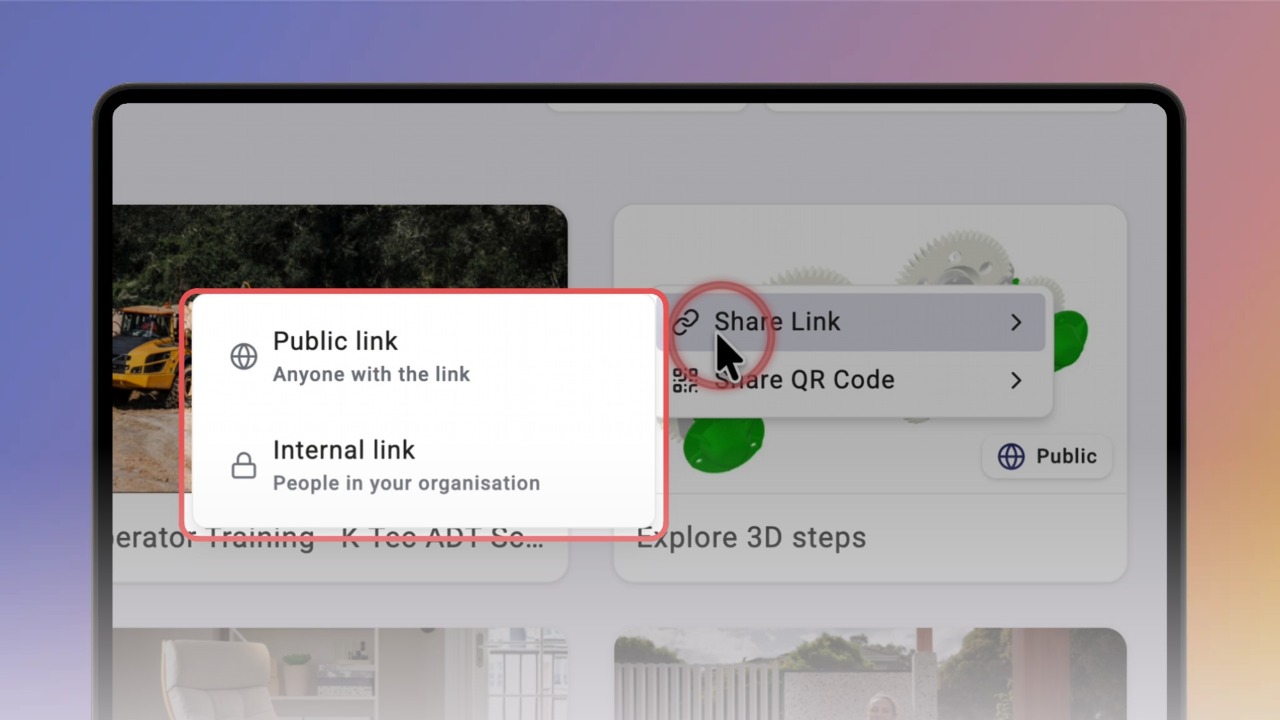
Public links and QR codes are only available for knowbys with Public access — look for the Public label on the card.
To set this up, see
Hover over a Public knowby card, click the share icon, then Share Link → Public link. The link is copied.
Paste a public link into any browser. The knowby opens straight away — no Knowby account or sign-in needed.
For your team, choose Internal link instead. It opens the knowby in Knowby, only for people in your organisation.
To share a QR code, click the share icon, then Share QR Code → Public QR code (or Internal).
Choose what to show on it and click Download — the PNG is saved to your device.
The QR code comes with the knowby's title, cover image and description, ready to print or display.
Scan it with a phone camera to open the knowby.
You can also share from the knowby's Details: click ⋯ → Details.
The access level is shown under the title, e.g. Public (Anyone on the web).
Under Share, Link and QR Code each have an Internal and a Public tab.