
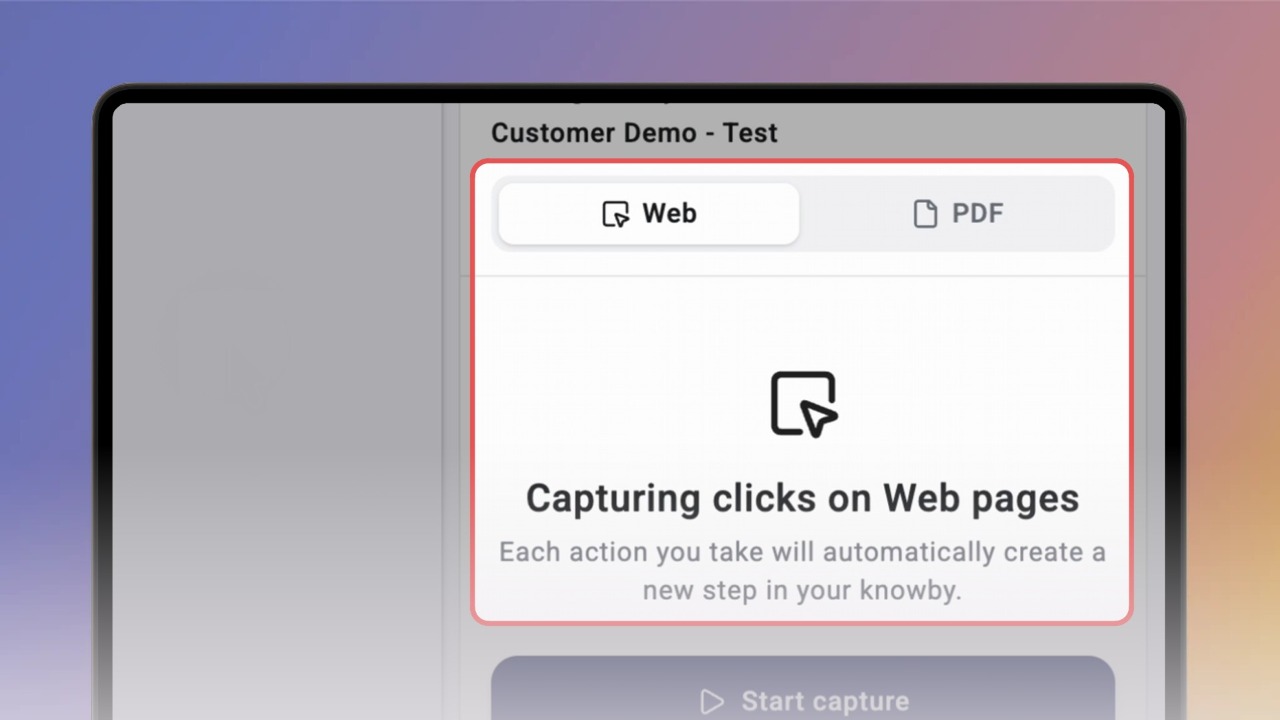
Click New knowby, then choose Capture with Extension. The Knowby Capture panel opens with the Web tab selected.
Capture works only on a real web page. If you click Start capture on a blank or new tab, you'll see "Please navigate to a website or PDF file before starting a capture." Open the website you want to capture first.
On your website, click Start capture. The screen dims for a short countdown, then recording starts.
Use the website as you normally would. Every click becomes a new step card in the panel, with a screenshot and the clicked area circled.
Tip: the panel scrolls to the newest step, so you can check each one as you go.
Check the step text as you capture. Auto-generated text can be unclear: here, clicking the cart icon created the step "Click "5"." (the number on the cart badge). Click into the text field and type a better instruction, for example Open the cart.
Click Done when you're finished. Keep the panel open while it saves. Your draft opens in Knowby Studio.