
Knowby
Account Update: System Migration
We’re updating Knowby's Identity Management System to better support scaling our customer base. As part of this upgrade, all email-based accounts require a one-time password reset to reactivate and securely migrate your credentials. NOTE: If you usually login in via SSO (Google, Microsoft) then you do not need to perform this password reset
1
Step 1 of 6
<p>To recover your password, enter your email into the field on the initial login screen and click <strong>Continue.</strong></p><blockquote><p><strong>Note:</strong> SSO users (<strong>Google, Microsoft</strong>) do not need to perform this reset.</p></blockquote><p></p>

To recover your password, enter your email into the field on the initial login screen and click Continue.

Note: SSO users (Google, Microsoft) do not need to perform this reset.

2
Step 2 of 6
<p>Once you are on the next screen, click on the <strong>Forgot your password?</strong> link located above the Log in button to begin the reset process.</p>

Once you are on the next screen, click on the Forgot your password? link located above the Log in button to begin the reset process.

3
Step 3 of 6

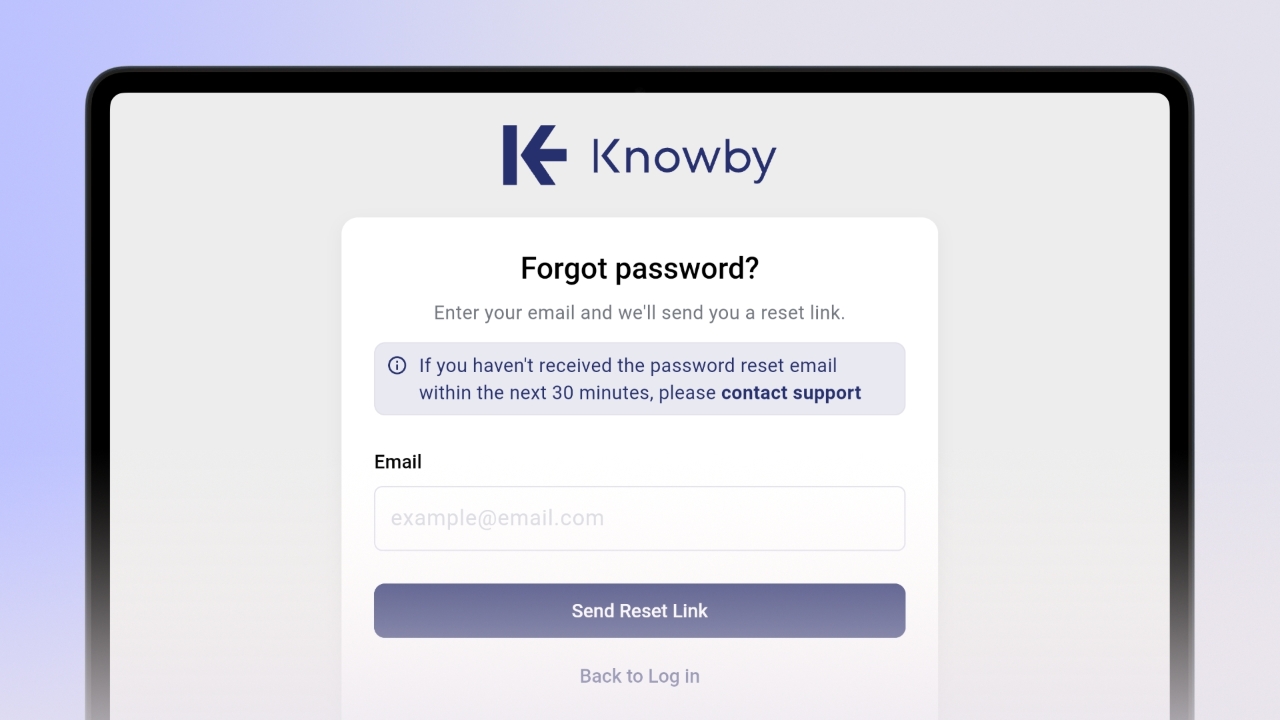
Enter your email address and click Send Reset Link.

Note: SSO users (Google, Microsoft) do not need to perform this reset.

4
Step 4 of 6

Open the reset email from Knowby (check your Spam folder if it hasn't arrived).

Click the Reset Password button inside the message.

5
Step 5 of 6

Enter a new password and confirm it.

Ensure all password requirements show a green tick, then click Reset password button.

6
Step 6 of 6

Your password is now updated.

Click Back to Log in to access your account with your new credentials.