
To publish a knowby, you need to submit it for approval first. You can do this from a few places:
The top bar when viewing the knowby
Knowby Details
The three-dot menu on the knowby card on the home page
Click Submit for Approval to start.
The Approval Process drawer opens. You can tag your knowby with a category (optional).
Think of it as a label to group related guides together, making them easier to browse, filter, and find. For example: Onboarding, HR, Sales, or IT.
Click Next to continue.
Select who can access this knowby:
Entire organisation – visible to everyone in your workspace
Anyone on the web – enable the checkbox to allow public sharing via a link.
Restricted to selected teams – visible only to specific teams.
Learn more about teams →
Click Next to continue.
Add a comment if needed (may be required depending on your organisation's settings).
Click Next to continue.
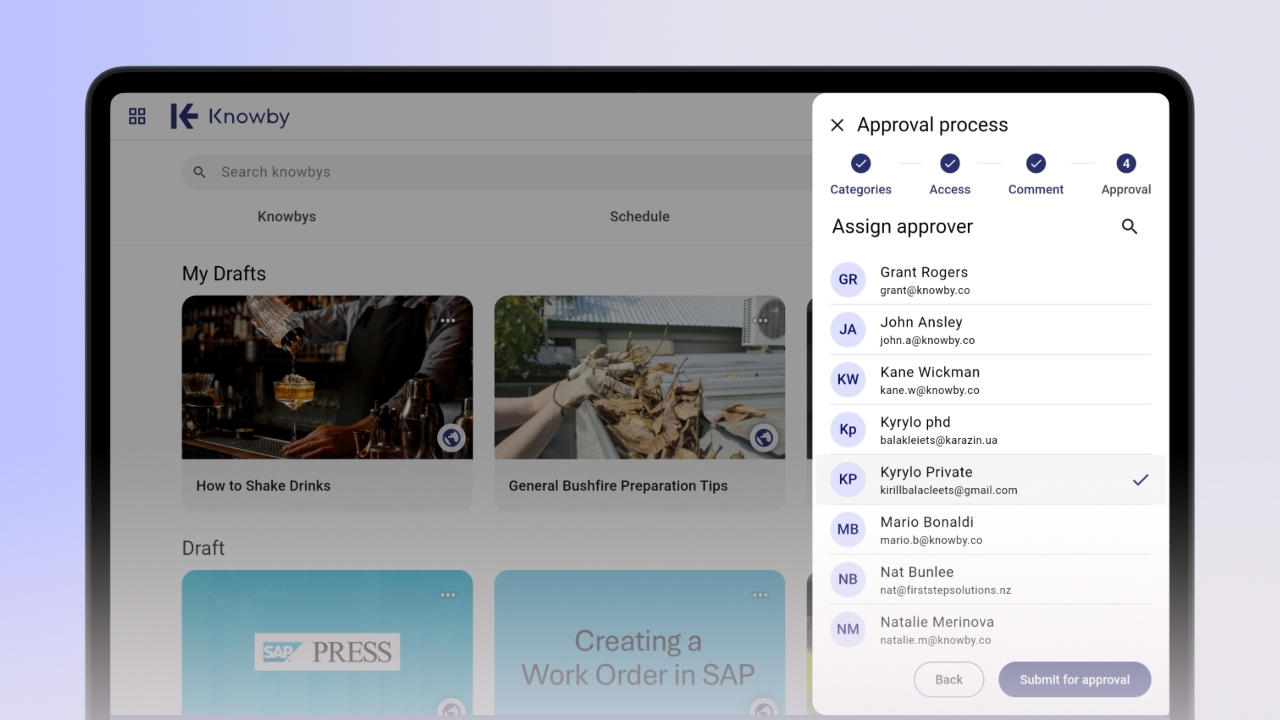
Now assign an approver:
Admin?
You can assign an approver or publish immediately by clicking Publish
Member?
Select an approver and click Submit for Approval – your knowby will appear in the workspace with the status Submitted for Approval
At any time, before the approver takes action on the assigned knowby, the creator (editor) or an admin can revoke it from the approver.
To do this, go to Knowby Details and click "Revoke from approver". After this action, the knowby will return to Draft status.
As an approver, you'll get a notification when a knowby is assigned to you. Find it in the Workspace tab under Awaiting My Approval. You can:
Publish (Approve) — add a comment and approve
Request Changes — add a comment with what needs to be fixed
Once approved or published directly by an admin, the knowby goes through a processing stage. You'll get a notification when it's live – it will appear in the Knowbys tab as Published.
Need to make changes after publishing? Go to Knowby Details and click Unpublish to move it back to Draft anytime.