
Edit media in a step
Trim videos, crop photos and videos, draw on them and add safety stickers with the built-in media editor.
Trim videos, crop photos and videos, draw on them and add safety stickers with the built-in media editor.
1
Step 1 of 4Upload a photo or video to a step — the editor tools appear below it. For a video, drag the ends of the timeline to Trim the clip.
2
Step 2 of 4Click Crop and choose a Crop shape: Custom, Square, 4:3, 16:9, 3:4 or 9:16. Drag the corners to adjust the frame.
3
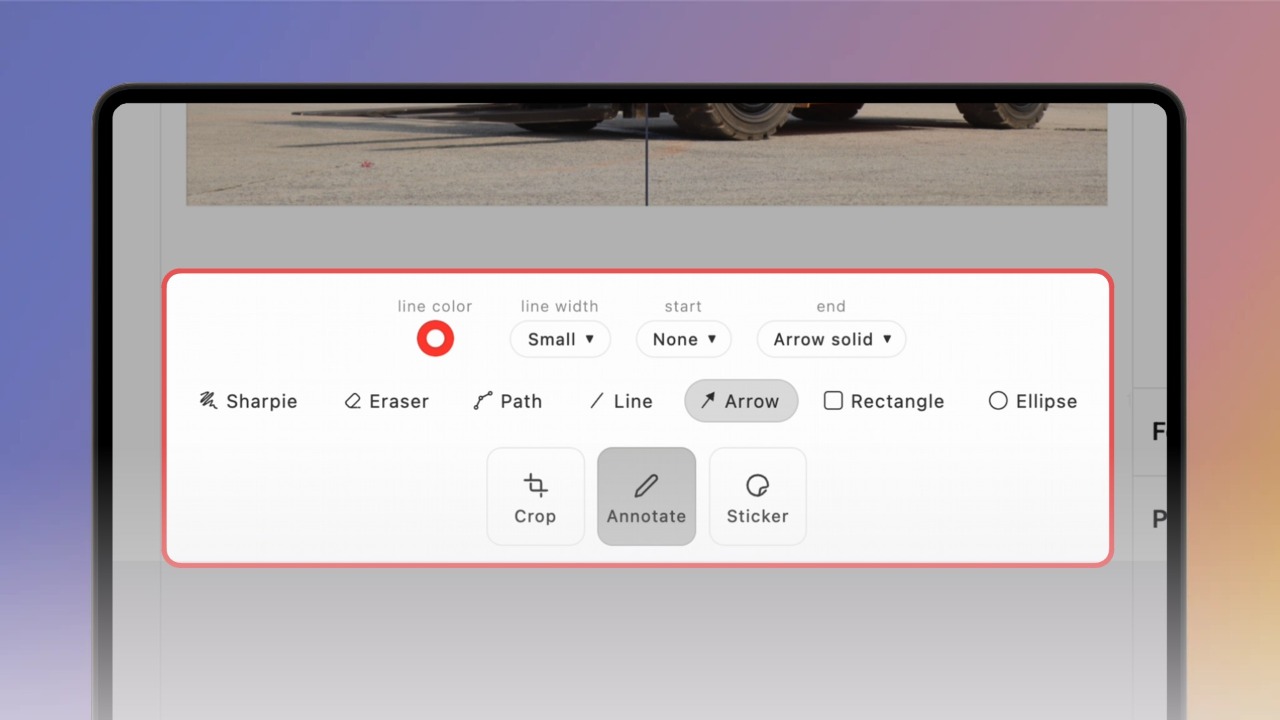
Step 3 of 4Click Annotate to draw on your media — Sharpie, Path, Line, Arrow, Rectangle, Ellipse or Text. Choose the colour and line width above the tools.
4
Step 4 of 4Click Sticker to add safety signs. Pick a category — Safe Condition, Fire Safety, Mandatory Action, Prohibition, Warning, General or Numbers — and click a sticker to place it.
Tip: Made a mistake? Use Undo and Redo at the top of the editor, or Revert to go back to the original media.