
5 Inventory Management Reports SAP
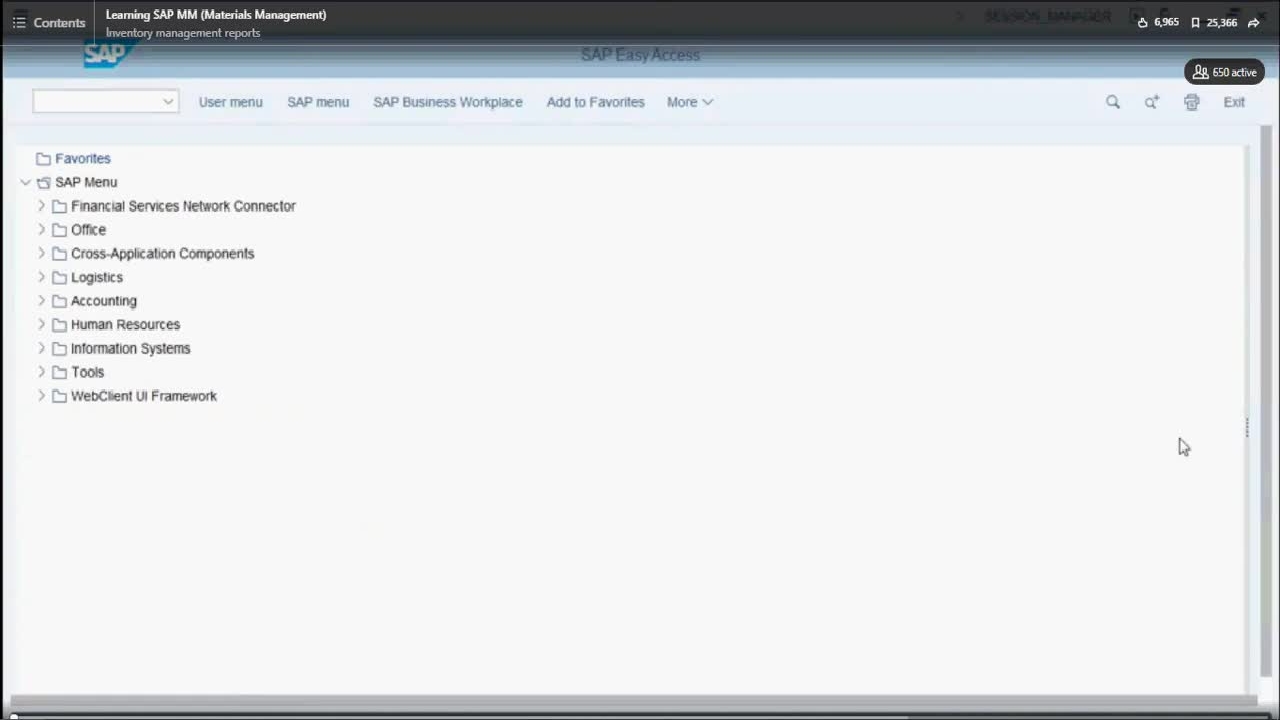
There are many standard inventory management reports available in SAP.
There are many standard inventory management reports available in SAP.
1
Step 1 of 20There are many standard inventory management reports available in SAP.
2
Step 2 of 20Let's look at the Material Document List report. To do so, we'll enter transaction code MB51 and press Enter.
3
Step 3 of 20This report is going to show every material document in the system based on our selection criteria. We'll enter Plant 1710, and we also want to enter Movement Type.
4
Step 4 of 20We'll click the Match Code button in Movement Type to see our options. We'll choose 101 to show all goods receipts at Plant 1710, and we'll execute this report.
5
Step 5 of 20We want to see the most recent document first. To do this, we'll click in the Posting Date column and click Sort in Descending Order.
6
Step 6 of 20From left to right, we have our material, which is RM15, the plant, which is 1710, the storage location, which is 171C, and the Movement Type, which is 101, which is a goods receipt.
7
Step 7 of 20Next, we have our material document number, the items, and the posting date.
8
Step 8 of 20Finally, we have our quantity, which is 500 pieces.
9
Step 9 of 20This is an interactive report, so we can drill down and look directly at the material documents.
10
Step 10 of 20To do this, we'll click on the document number we want to view and click Material Document.
11
Step 11 of 20This brings us into the Display Document view. This is handy if we want to see more details.
12
Step 12 of 20For example, our report didn't show who the vendor was, so we can click on the Vendor tab.
13
Step 13 of 20The Vendor tab shows us this was a domestic US supplier based out of Boston, and it shows the vendor number.
14
Step 14 of 20To return to our list, we'll click the Back button.
15
Step 15 of 20This is only one of the standard inventory management reports in SAP.
16
Step 16 of 20Let's look at some of the other available reports. To do this, we'll press Exit and Exit again.
17
Step 17 of 20This takes us back to the SAP Easy Access screen. We'll expand the Logistics folder and then Materials Management.
18
Step 18 of 20Now we'll expand Inventory Management. Next, we'll expand Environment and then List Displays.
19
Step 19 of 20These five reports are compiled lists that help us get good insights into inventory management.
20
Step 20 of 20We'll also expand the Stock folder. As you can see, there are many inventory management reports for each of the movement types and to suit your specific data needs.