
A new version is created every time a knowby is edited and published.
To see the full list, open the three-dot menu on the knowby card and select "Knowby Details", then click "Version History".
Each entry shows the version number, the name of the editor who made the changes, and the time it was created. The current version is clearly marked on the right.
To preview a version before restoring it, click "View" on the right side of any entry — the version will open in a read-only preview window.
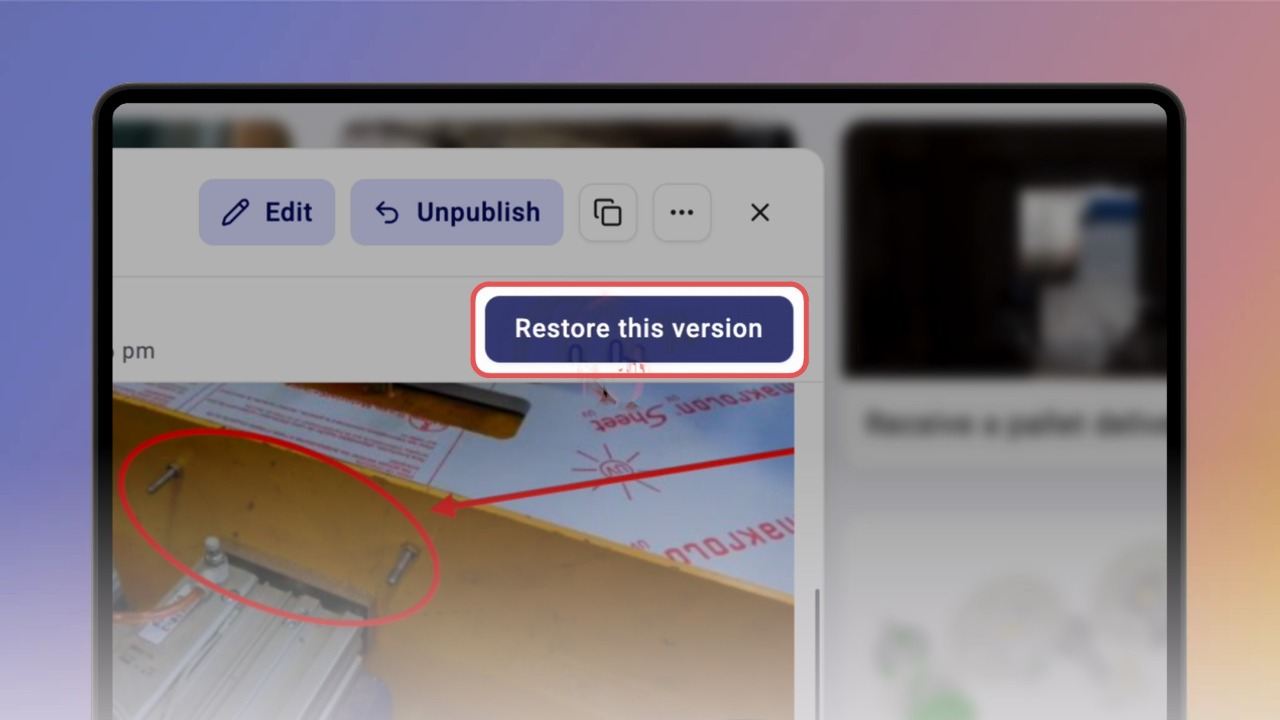
To restore a version, click "Restore this version".
This creates a new draft based on that version — your published knowby stays live and unchanged until you publish the new draft.
Make any final adjustments, then click "Done" to move into the approval process and publish.
Not sure how to publish? Check out the
Approve and publish a knowby guide.
Once published and processed, your knowby will reflect the restored version as the new current version — and it will appear in Version History with today's date and the editor details.