
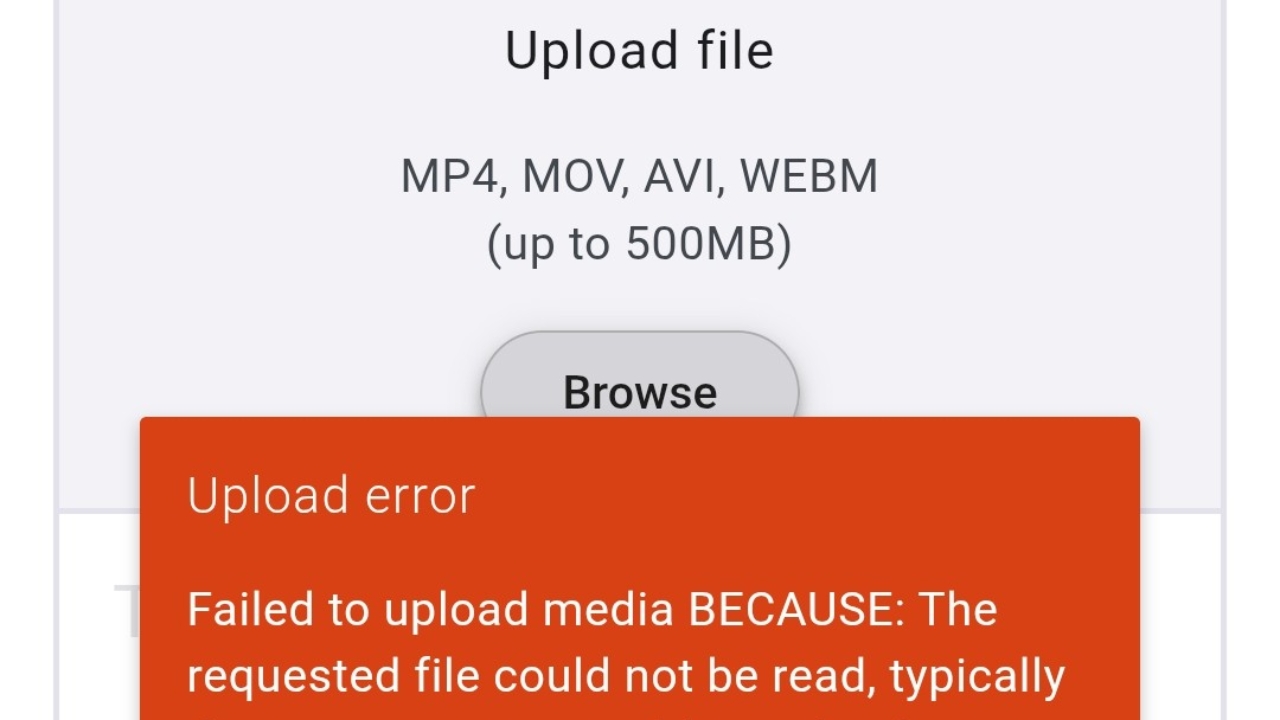
How to Allow Media Access on an Android Device
Sometimes apps require media access for the purposes of selecting and uploading images, such as is required in Knowby Studio. This knowby explains how to restore access if you previously denied camera or gallery access on your Android device.
Sometimes apps require media access for the purposes of selecting and uploading images, such as is required in Knowby Studio. This knowby explains how to restore access if you previously denied camera or gallery access on your Android device.
1
Step 1 of 7
Locate the settings app
2
Step 2 of 7
Click on the option "Apps" to access app specific settings
3
Step 3 of 7
Click "See all" so that you can select a specific app
4
Step 4 of 7
Scroll until you can select the app you are looking for. In this case, Knowby Pro!
5
Step 5 of 7
Once you have selected the correct app, click on "Permissions"
6
Step 6 of 7
You can access all app specific settings from this screen. To add media in Knowby Studio, you should give access to the camera, microphone and media library.
7
Step 7 of 7
Ensure that camera access is granted. This is necessary when recording a photo or video through Knowby Studio.
Repeat this step for 'Microphone' and 'Photos and videos'.