
Part 1 · Filter your results
Open Diagnostics
Tap Diagnostics in the bar at the bottom of the app.

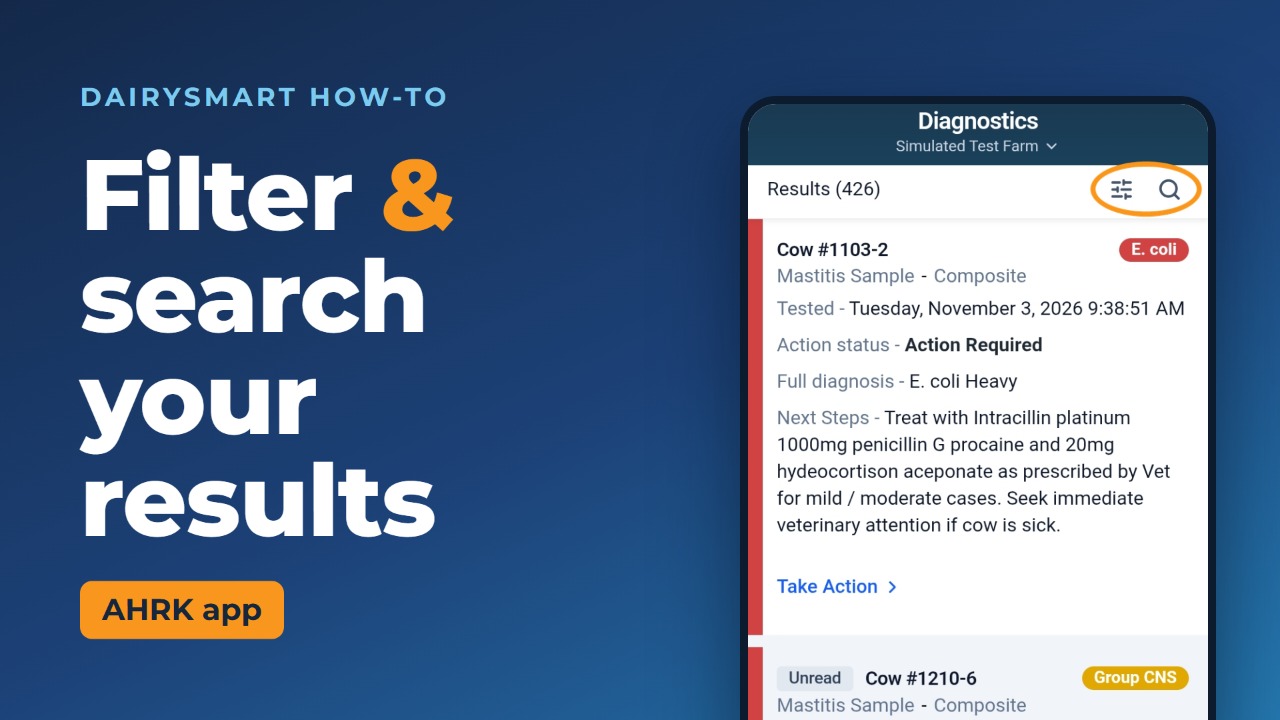
Tap the filter icon
It is the sliders icon at the top right, on the same line as the result count.

Choose an action status
Pick Action Required, Complete or Treatment In Progress. Leave it on All to see everything.

Turn on any options you need
Show Culled Cows adds culled cows to the list. Show Only Unread Diagnoses hides results you have already read.

Set a date range if you want one
Tap From and To to pick the dates. You can leave both empty.

Choose a pathogen
Scroll down to see the full list. Leave it on All to see every pathogen.

Tap Apply
The list now shows only the results that match.

Clear the filter when you're done
Open the filter again, scroll to the bottom and tap Clear Filter.

Part 2 · Search
Tap the search icon
It is the magnifying glass next to the filter icon.

Type your search and tap Apply
Tap the search box, type what you want to find, then tap Apply.

Use the same icons on Herd Records
Tap Herd Records in the bottom bar. The filter and search icons are in the same place.