
Create A Manual Reservation
To request materials from the warehouse, you create a manual reservation.
To request materials from the warehouse, you create a manual reservation.
1
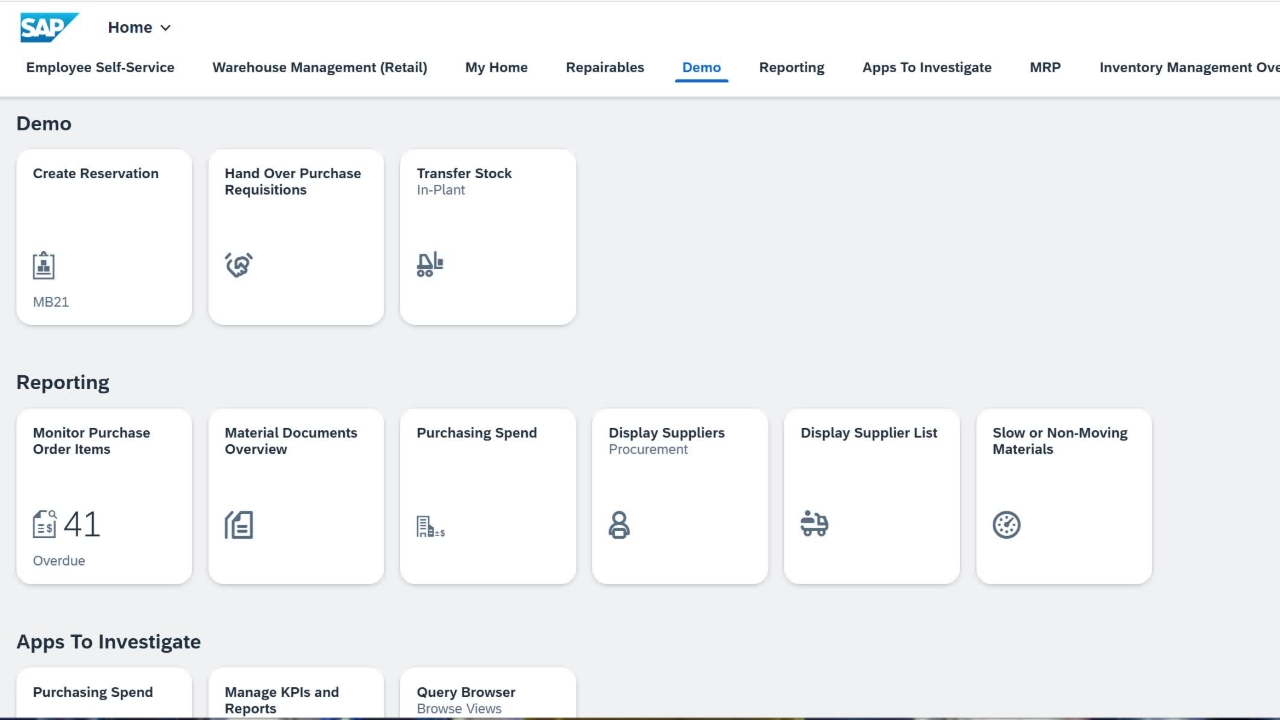
Step 1 of 25Select the Create Reservation tile from the SAP homepage.
2
Step 2 of 25That will open the initial screen of Create Reservation.
3
Step 3 of 25The base date defaults to today's date. You can change that to a date in the future when you want the goods.
4
Step 4 of 25The movement type will change depending on if you're charging this to a cost centre or a WBS.
5
Step 5 of 25In this example, we will charge to a cost centre. So the movement type is 201.
6
Step 6 of 25And we enter our plant. This will default from your default settings if you have it saved.
7
Step 7 of 25Select Create New Items. It will open the New Items page.
8
Step 8 of 25We leave the GL account field blank as the SAP configuration will correctly determine the GL.
9
Step 9 of 25We enter the goods recipient of who will be picking up the goods.
10
Step 10 of 25And we will enter the cost centre. You can search by using the drop down.
11
Step 11 of 25If you know your cost centre, you can just type it in.
12
Step 12 of 25We'll add the material number for the item that we want. Once again, using the drop downs, you can search for the material.
13
Step 13 of 25As I know the material number, I can just type it in.
14
Step 14 of 25And we can double check that I've typed in the right one. We enter the quantity that we would like.
15
Step 15 of 25We can leave the unit of Measure blank. Our plant defaults from the front screen.
16
Step 16 of 25And we select the storage location that we want the goods issued from.
17
Step 17 of 25If this is the only item that you would like and no additional details, you can select the post button now.
18
Step 18 of 25However, if you double click on the item, you can add in additional information.
19
Step 19 of 25You can change the GL here if you needed to.
20
Step 20 of 25You can enter an unloading point or a comment. In this example, we will pick the item up from the warehouse.
21
Step 21 of 25I can add additional item text. If everything is okay, select collective processing to take you back to the item list.
22
Step 22 of 25It looks like only two materials can be selected. Once you've filled in both lines, selecting the new items button will add additional lines so you can request additional materials.
23
Step 23 of 25When we're happy with the request, select the post button to save.
24
Step 24 of 25It goes back to the initial screen and we will see the reservation number that was just created.
25
Step 25 of 25If you now finish, selecting the SAP button will navigate back to the homepage.