Knowby Sculptform
Knowby
Entering Operating Invoices - MYOB & Xero
Entering invoices in MYOB Xero
1
Step 1 of 39
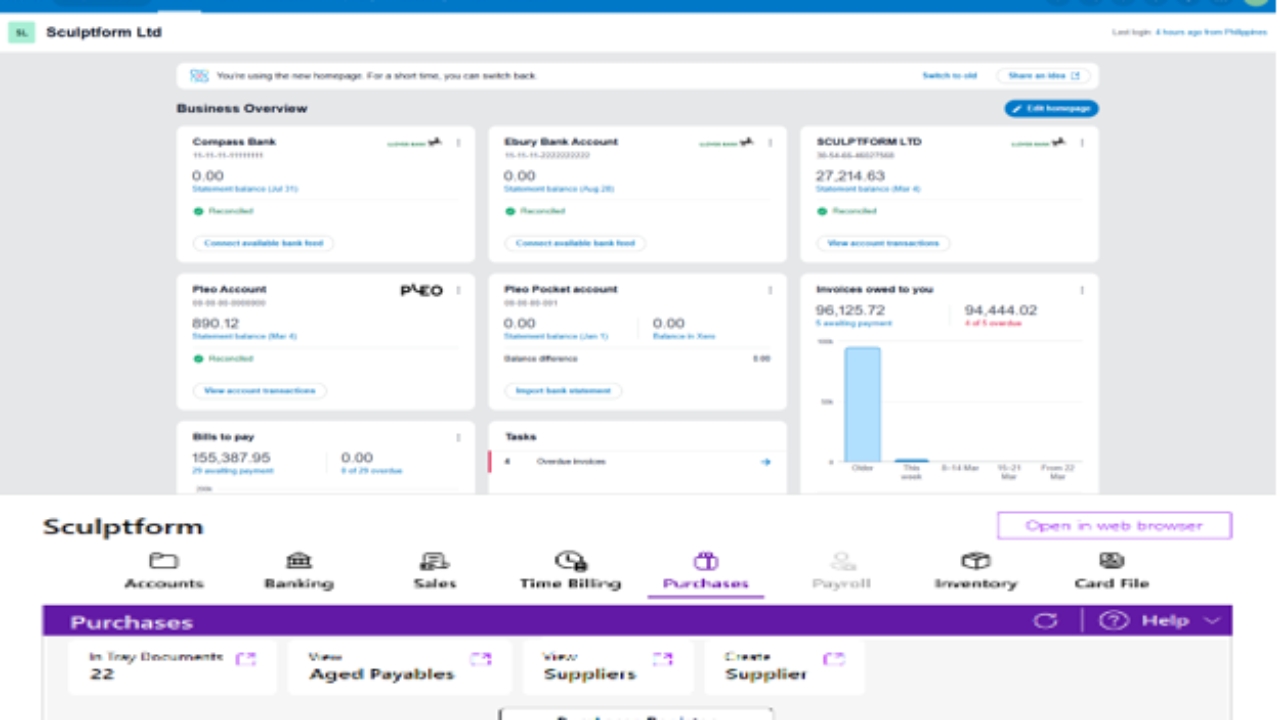
<p>Entering invoices in MYOB Go to Purchase In Tray button</p><p></p>

Entering invoices in MYOB Go to Purchase In Tray button

2
Step 2 of 39
<p>Drag the invoice from AccountsAP Email to In-tray</p>

Drag the invoice from AccountsAP Email to In-tray

3
Step 3 of 39
<p>Drag the invoice from AccountsAP Email to In-tray</p><p></p><p>Select the invoice &amp; Click to Create a new bill</p><p></p>

Drag the invoice from AccountsAP Email to In-tray

Select the invoice & Click to Create a new bill

4
Step 4 of 39
<h1>Select the invoice &amp; Click to Create a new bill</h1><p>• • • • • • • •</p><ul><li><p>Check supplier name</p></li><li><p>Check date of the invoice</p></li><li><p>Check invoice number Check account number</p></li><li><p>Check amount</p></li><li><p>Check Tax - GST, NT or GST free &amp; change according as per invoice</p></li><li><p>Check Payment terms &amp; adjust as per invoice due date Click Record</p></li></ul><p></p><p>Note - If it’s a new supplier you will need to create a new supplier card before entering an invoice in MYOB</p>

Select the invoice & Click to Create a new bill

• • • • • • • •

  • Check supplier name

  • Check date of the invoice

  • Check invoice number Check account number

  • Check amount

  • Check Tax - GST, NT or GST free & change according as per invoice

  • Check Payment terms & adjust as per invoice due date Click Record

Note - If it’s a new supplier you will need to create a new supplier card before entering an invoice in MYOB
5
Step 5 of 39
<h1><strong>Notes on Supplier</strong></h1><ul><li><p>Cabots &amp; Dulux - are both enter under Cabot's’ supplier name</p></li></ul><p></p>

Notes on Supplier

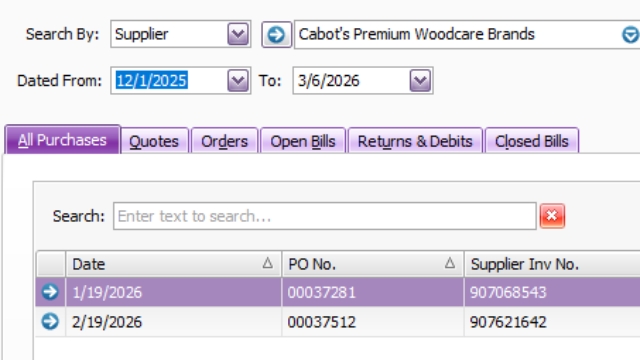
  • Cabots & Dulux - are both enter under Cabot's’ supplier name

6
Step 6 of 39
<h1><strong>Notes on Supplier</strong></h1><ul><li><p>Rodburn Pty Ltd Invoices.</p></li></ul><p>Has multiple accounts</p><ol><li><p>5-2924 - Cleaning supplies</p></li><li><p>6-7144 - Admin staff Amenities •</p></li><li><p>5-2725 - Packaging •</p></li><li><p>5-2895 - Protective Clothing &amp; Equipment •</p></li><li><p>5-2791 - Production expense •</p></li></ol><p></p><p></p>

Notes on Supplier

  • Rodburn Pty Ltd Invoices.

Has multiple accounts

  1. 5-2924 - Cleaning supplies

  2. 6-7144 - Admin staff Amenities •

  3. 5-2725 - Packaging •

  4. 5-2895 - Protective Clothing & Equipment •

  5. 5-2791 - Production expense •

7
Step 7 of 39
<h1><strong>Notes on Supplier</strong></h1><p></p><ul><li><p>Mondiale Invoices - Normal Freight INV and Disbursement INV – Check GST or NT &amp; change Payment terms on Disbursement invoice (7 days) - Check Freight invoices process on how to enter them in MYOB Two types of in invoice: Tax invoice DISBURSEMENT (always change the Purchase No. to DISBURSEMENT and change the due date terms) and untick the Tax Inclusive will be same with DHL - D</p></li></ul><p>in doing the entry. This process</p><p>Sample entry:</p>

Notes on Supplier

  • Mondiale Invoices - Normal Freight INV and Disbursement INV – Check GST or NT & change Payment terms on Disbursement invoice (7 days) - Check Freight invoices process on how to enter them in MYOB Two types of in invoice: Tax invoice DISBURSEMENT (always change the Purchase No. to DISBURSEMENT and change the due date terms) and untick the Tax Inclusive will be same with DHL - D

in doing the entry. This process

Sample entry:

8
Step 8 of 39
<h1><strong>Notes on Supplier</strong></h1><p></p><ul><li><p>Mondiale Invoices - Normal Freight INV and Disbursement INV – Check GST or NT &amp; change Payment terms on Disbursement invoice (7 days) - Check Freight invoices process on how to enter them in MYOB Two types of in invoice: Tax invoice DISBURSEMENT (always change the Purchase No. to DISBURSEMENT and change the due date terms) and untick the Tax Inclusive will be same with DHL - D</p></li></ul><p>in doing the entry. This process</p><p>Sample entry:</p>

Notes on Supplier

  • Mondiale Invoices - Normal Freight INV and Disbursement INV – Check GST or NT & change Payment terms on Disbursement invoice (7 days) - Check Freight invoices process on how to enter them in MYOB Two types of in invoice: Tax invoice DISBURSEMENT (always change the Purchase No. to DISBURSEMENT and change the due date terms) and untick the Tax Inclusive will be same with DHL - D

in doing the entry. This process

Sample entry:

9
Step 9 of 39
<p>• MELIR invoices are incoming freight - allocated to 5-2730 account &amp; Some are samples 6-3110 Tax &amp; Duty check second page of the invoice Elaborate: 5-2730 for Incoming freight 6-3110 for Tax &amp; Duty Sample entry: (5-2730) </p><p></p><p>Sample entry: (6-3110) Always check the due date</p>

• MELIR invoices are incoming freight - allocated to 5-2730 account & Some are samples 6-3110 Tax & Duty check second page of the invoice Elaborate: 5-2730 for Incoming freight 6-3110 for Tax & Duty Sample entry: (5-2730)

Sample entry: (6-3110) Always check the due date

10
Step 10 of 39
<p>MELR &amp; FEDEX invoices are send to Georgia for approvals. Georgia will advise if for US, UK and Product &amp; development remaining balance is for Sample. 6-3110 Sample 6-8400 Product &amp; Development account, 1-6630 Loan US 1-6631 Loan UK Loan US &amp; UK (1-6630-US &amp; 1-6631-UK) - send statement loan to US &amp; UK after EOM to pay us back. Sample entry</p>

MELR & FEDEX invoices are send to Georgia for approvals. Georgia will advise if for US, UK and Product & development remaining balance is for Sample. 6-3110 Sample 6-8400 Product & Development account, 1-6630 Loan US 1-6631 Loan UK Loan US & UK (1-6630-US & 1-6631-UK) - send statement loan to US & UK after EOM to pay us back. Sample entry

11
Step 11 of 39
<p>D invoices are Australian Duty & Taxes – allocated to 5-2730 account - but need to split
accordingly (like Mondiale Disbursement invoice) - Change the payment term to 7 days</p><p>Sample entry:</p>

D invoices are Australian Duty & Taxes – allocated to 5-2730 account - but need to split accordingly (like Mondiale Disbursement invoice) - Change the payment term to 7 days

Sample entry:

12
Step 12 of 39
<p>Dorset Australia (VIC) Pty Ltd</p><p>Has different account used:</p><p></p><p>5-2927 - Rent invoice – Rent – Land account.</p><p></p><p>5-1500 - CONNECTING 2 AUSTRALIA LABOUR CHARGE INVOICE – Send Ken for Approvals goes to COGS check GST while changing the account.</p><p></p><p>5-2792 - INTERSLIDE HEAVY DUTY FULL-EXTENSION BALL BEARING SLIDE 182KG 1200MM NON-LOCKING UNIVERSAL </p>

Dorset Australia (VIC) Pty Ltd

Has different account used:

5-2927 - Rent invoice – Rent – Land account.

5-1500 - CONNECTING 2 AUSTRALIA LABOUR CHARGE INVOICE – Send Ken for Approvals goes to COGS check GST while changing the account.

5-2792 - INTERSLIDE HEAVY DUTY FULL-EXTENSION BALL BEARING SLIDE 182KG 1200MM NON-LOCKING UNIVERSAL

13
Step 13 of 39
<p>TNT Invoices -</p><p>Multiple account</p><p>Check Customer <strong>references</strong> to know to account to used</p><ul><li><p>With SO – Outgoing Freight 5-2735 Sample SO</p></li><li><p>With PO- Incoming Freight 5-2730</p></li><li><p>Balance amount – Sample 6-3110</p></li></ul><p>If with Person name on Customer references– Check if Personal or not with Georgia.</p><p>If no Customer references – Check with Georgia is personal use sample 6-3110 &amp; send the screenshot to the person they will pay us back. It will go to sample account when they pay us back. </p>

TNT Invoices -

Multiple account

Check Customer references to know to account to used

  • With SO – Outgoing Freight 5-2735 Sample SO

  • With PO- Incoming Freight 5-2730

  • Balance amount – Sample 6-3110

If with Person name on Customer references– Check if Personal or not with Georgia.

If no Customer references – Check with Georgia is personal use sample 6-3110 & send the screenshot to the person they will pay us back. It will go to sample account when they pay us back.

14
Step 14 of 39
<p>National Powder coating Pty Ltd - Invoices start with PO- ZB will go to 6-3110 and at Purchase No. put the ZB invoice number</p><p></p>

National Powder coating Pty Ltd - Invoices start with PO- ZB will go to 6-3110 and at Purchase No. put the ZB invoice number

15
Step 15 of 39
<p>UBT invoices - Always check on invoice if Direct Debit is indicated on the invoice. </p><p></p><ul><li><p>Sample invoice for Direct Debit</p></li></ul><p></p>

UBT invoices - Always check on invoice if Direct Debit is indicated on the invoice.

  • Sample invoice for Direct Debit

16
Step 16 of 39
<p>Sample invoice for Not Direct Debit</p><p></p>

Sample invoice for Not Direct Debit

17
Step 17 of 39
<p>AMPOL Fuel Card(s) - 6-7300 Motor vehicle expense (Direct Debit set up)</p>

AMPOL Fuel Card(s) - 6-7300 Motor vehicle expense (Direct Debit set up)

18
Step 18 of 39
<p>7601 Telephone &amp; internet (Direct Debit) Online Business Centre / Additional</p>

7601 Telephone & internet (Direct Debit) Online Business Centre / Additional

19
Step 19 of 39
<p>LinkedIn Licenses – 6-7148 Admin Training &amp; Welfare (Direct Debit)</p>

LinkedIn Licenses – 6-7148 Admin Training & Welfare (Direct Debit)

20
Step 20 of 39
<p></p><p>Origin Invoices – All Origin Invoices are Direct Debit (PUT DIRECT DEBIT ON PO)</p><p>Account LPG Invoice – 5-2794 Gas Account</p><p></p>

Origin Invoices – All Origin Invoices are Direct Debit (PUT DIRECT DEBIT ON PO)

Account LPG Invoice – 5-2794 Gas Account

21
Step 21 of 39
<p>Cloud staff Invoices Invoice for Jesper &amp; Kiazea – Go to 6-4105- Customer service wages Invoice for Anthony – Go to 6-7505 Admin wages</p>

Cloud staff Invoices Invoice for Jesper & Kiazea – Go to 6-4105- Customer service wages Invoice for Anthony – Go to 6-7505 Admin wages

22
Step 22 of 39
<p>Bunnings Invoices</p><p>All the bunning invoices link through to our in- Tray so enter the invoice from in-tray. They will not receive on our accountsAP email. Payment will be credit card (Online Payment) . Proceed to create a bill.</p>

Bunnings Invoices

All the bunning invoices link through to our in- Tray so enter the invoice from in-tray. They will not receive on our accountsAP email. Payment will be credit card (Online Payment) . Proceed to create a bill.
23
Step 23 of 39
<p>Always change the PO# BPAY All BPAY should email to Sabi for payment</p><p>Telstra @ Teska &amp; Carson Pty Ltd Need to be paid by BPAY (below is sample invoice)</p><p>Always change the PO# BPAY All BPAY should email to Sabi for payment</p>

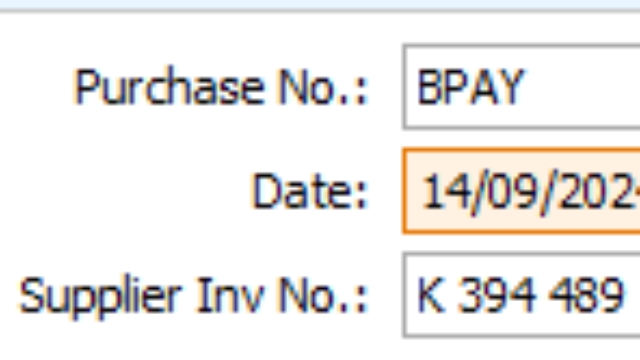
Always change the PO# BPAY All BPAY should email to Sabi for payment

Telstra @ Teska & Carson Pty Ltd Need to be paid by BPAY (below is sample invoice)

Always change the PO# BPAY All BPAY should email to Sabi for payment

24
Step 24 of 39
<p>Alliance Business Technologies</p><p>Check invoice and add up the below 6 numbers - Service /Support invoice = 6-7604 Service &amp; Software Development</p><p>Remaining Balance go to 6-7602 Software Licence</p>

Alliance Business Technologies

Check invoice and add up the below 6 numbers - Service /Support invoice = 6-7604 Service & Software Development

Remaining Balance go to 6-7602 Software Licence

25
Step 25 of 39
<p>Alliance Business Technologies</p><p>Check invoice and add up the below 6 numbers - Service /Support invoice = 6-7604 Service &amp; Software Development</p><p>Remaining Balance go to 6-7602 Software Licence</p>

Alliance Business Technologies

Check invoice and add up the below 6 numbers - Service /Support invoice = 6-7604 Service & Software Development

Remaining Balance go to 6-7602 Software Licence

26
Step 26 of 39
<p>Mainfreight Distribution Pty Ltd Do not enter - Debit advice</p><p>Only enter- Statement invoice after Georgia Approvals</p>

Mainfreight Distribution Pty Ltd Do not enter - Debit advice

Only enter- Statement invoice after Georgia Approvals

27
Step 27 of 39
<p>Only enter- Statement invoice after Georgia Approvals</p><p>Engineering cost Overall Engineering cost – Product Development a/c 6-8400 EOM - We will journal to Sculptform Global</p><p>If the Engineering Cost related to project – Can be COGS (5-1500) or Stock (1-1693) Double check with KEN</p>

Only enter- Statement invoice after Georgia Approvals

Engineering cost Overall Engineering cost – Product Development a/c 6-8400 EOM - We will journal to Sculptform Global

If the Engineering Cost related to project – Can be COGS (5-1500) or Stock (1-1693) Double check with KEN

28
Step 28 of 39
<p>Credit Note:
Put negative amount on amount section while entering in MYOB & apply to any outstanding
bill</p>

Credit Note: Put negative amount on amount section while entering in MYOB & apply to any outstanding bill

29
Step 29 of 39
<p>Credit Note: Put negative amount on amount section while entering in MYOB &amp; apply to any outstanding bill</p><p></p>

Credit Note: Put negative amount on amount section while entering in MYOB & apply to any outstanding bill

30
Step 30 of 39
<p>Meal Expense reimbursement</p><p></p>

Meal Expense reimbursement

31
Step 31 of 39
<p>Travel expense Reimbursement</p>

Travel expense Reimbursement

32
Step 32 of 39
<p>Example entry for Travel expenses reimbursement.</p>

Example entry for Travel expenses reimbursement.

33
Step 33 of 39
<p>Note - Sending for payment International MYOB invoice to Sabi should be on the due date of the invoice. Make note on the header title of the due date of invoice to get notice.</p>

Note - Sending for payment International MYOB invoice to Sabi should be on the due date of the invoice. Make note on the header title of the due date of invoice to get notice.

34
Step 34 of 39
<p>Note - Sending for payment International MYOB invoice to Sabi should be on the due date of the invoice. Make note on the header title of the due date of invoice to get notice.</p>

Note - Sending for payment International MYOB invoice to Sabi should be on the due date of the invoice. Make note on the header title of the due date of invoice to get notice.

35
Step 35 of 39
<p>LJB Timber Packaging Pty Ltd Always put the PO number as per the invoice (Example PO 00033718)</p>

LJB Timber Packaging Pty Ltd Always put the PO number as per the invoice (Example PO 00033718)
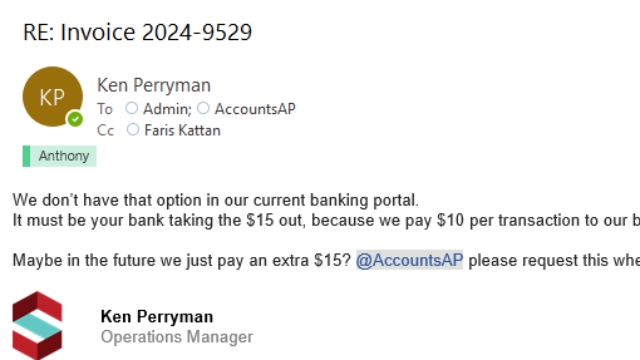
36
Step 36 of 39
<p>Structural Engineers New Zealand- Payment additional payment.</p><p></p>

Structural Engineers New Zealand- Payment additional payment.

37
Step 37 of 39
<p>Xero system posting Purchased Invoice</p>

Xero system posting Purchased Invoice

38
Step 38 of 39
<p>On Purchases Click New bill</p>

On Purchases Click New bill

39
Step 39 of 39
<h1>When a Create a new bill</h1><p>• • • • • • • •</p><ul><li><p>Check supplier name</p></li><li><p>Check date of the invoice</p></li><li><p>Check invoice number Check account number</p></li><li><p>Check amount</p></li><li><p>Check Tax - GST, NT or GST free &amp; change according as per invoice</p></li><li><p>Check Payment terms &amp; adjust as per invoice due date Click Record</p></li><li><p>Then attached the invoice.</p></li></ul><p></p><p>Note - If it’s a new supplier you will need to create a new supplier card before entering an invoice in Xero</p>

When a Create a new bill

• • • • • • • •

  • Check supplier name

  • Check date of the invoice

  • Check invoice number Check account number

  • Check amount

  • Check Tax - GST, NT or GST free & change according as per invoice

  • Check Payment terms & adjust as per invoice due date Click Record

  • Then attached the invoice.

Note - If it’s a new supplier you will need to create a new supplier card before entering an invoice in Xero