
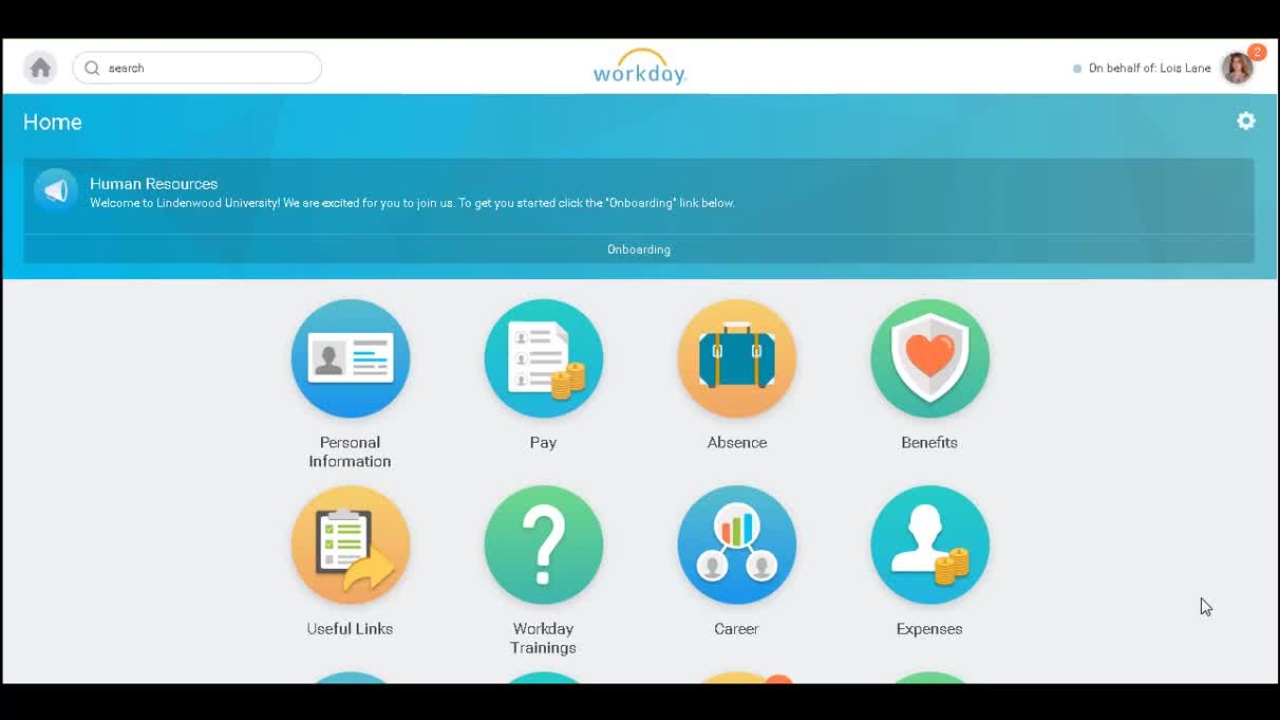
Requesting Absence Workday 29
Welcome to Workday. In this video we will demonstrate how to request absence.
Welcome to Workday. In this video we will demonstrate how to request absence.
1
Step 1 of 11Welcome to Workday. In this video we will demonstrate how to request absence.
2
Step 2 of 11In Workday 29, time off is referred to as absence.
3
Step 3 of 11I will begin by accessing my absence worklet and I will request absence.
4
Step 4 of 11I can select the month in which I would like to take time off.
5
Step 5 of 11And then I will select the day and click the green button request absence.
6
Step 6 of 11I will be prompted to select the type and click next.
7
Step 7 of 11The quantity per day will default to eight hours. If I wish to edit this, I will simply click edit quantity per day.
8
Step 8 of 11I can then change this number to four hours.
9
Step 9 of 11I can also add a comment to my manager and I will click done and submit.
10
Step 10 of 11I will be sent a notification once my manager approves or denies my request.
11
Step 11 of 11This concludes the demonstration. Thank you for using Workday.