
Knowby
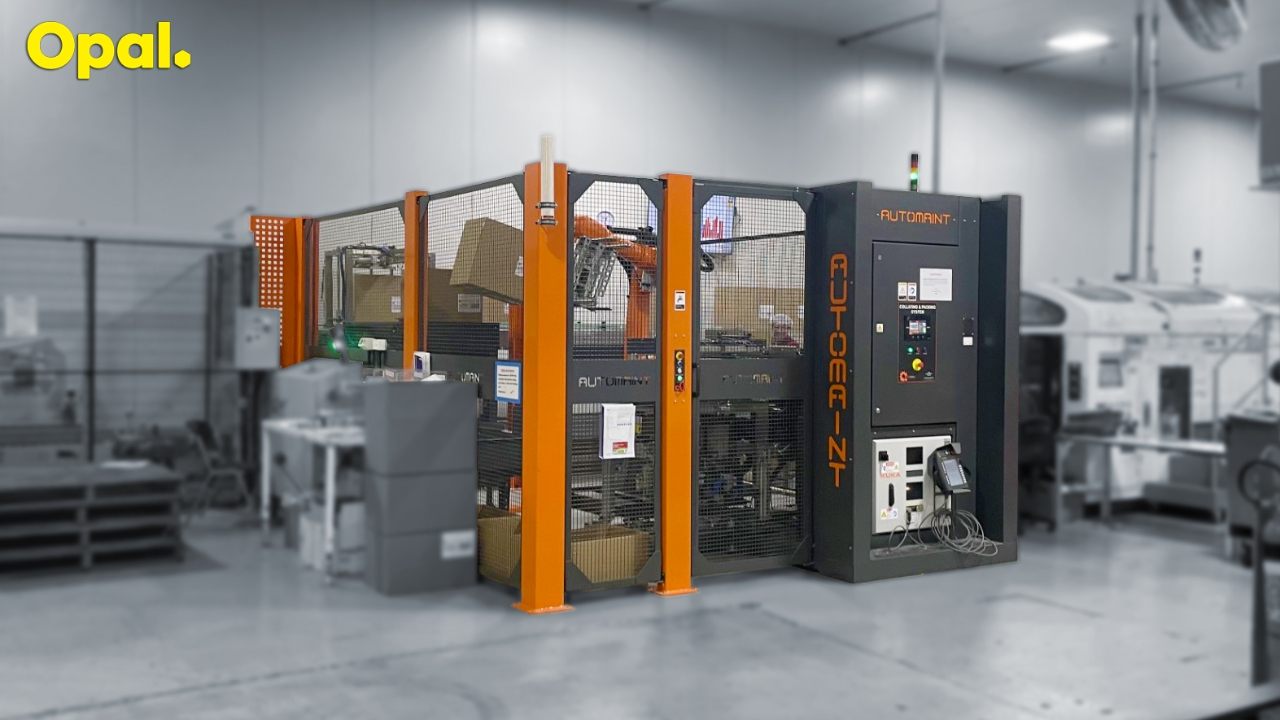
Access Automaint Robot Cell
SOP: PRO SOS3 4 Access the Robot You are not allowed to enter the robot zone unless you have been trained on this SOP. Step 1: Ensure no boxes or bags in the air Step 2: Push the STOP button Step 3: Press the ‘Home’ tab on HMI
1
Step 1 of 26
<p>SOP: Access the Robot<br></p><p><br></p><p><span>You are not allowed to enter the robot
  zone unless you have been trained on this SOP. </span>
  
 
<br></p>

SOP: Access the Robot


You are not allowed to enter the robot zone unless you have been trained on this SOP.

2
Step 2 of 26
<p>Step 1: Ensure no boxes or bags in the air</p>

Step 1: Ensure no boxes or bags in the air

3
Step 3 of 26
<p>Step 2: Push the STOP button</p><p><br></p><p><br></p>

Step 2: Push the STOP button


4
Step 4 of 26
<p>Step 3: Press the ‘Home’ tab on HMI<br></p><p><br></p><p><br></p>

Step 3: Press the ‘Home’ tab on HMI


5
Step 5 of 26
<p>Step 4: Press ‘Send Robot to Home Position’<br></p>

Step 4: Press ‘Send Robot to Home Position’

6
Step 6 of 26
<p><span>Step 5:&nbsp;<span>Check the robot is at home position</span></span><br></p>

Step 5: Check the robot is at home position

7
Step 7 of 26
<p>Step 6: Push the white ‘Entry Request’ button</p>

Step 6: Push the white ‘Entry Request’ button

8
Step 8 of 26
<p>Step 7: The white button will flash</p>

Step 7: The white button will flash

9
Step 9 of 26
<p>Step 8: Wait until it becomes solid white</p>

Step 8: Wait until it becomes solid white

10
Step 10 of 26
<p>Step 9: Take out the key<br></p><p><br></p>

Step 9: Take out the key


11
Step 11 of 26
<p>Step 10: Have the key under YOUR control!<br></p>

Step 10: Have the key under YOUR control!

12
Step 12 of 26
<p><span>Step 11: Open the door and enter</span></p>

Step 11: Open the door and enter

13
Step 13 of 26
<p><span>Step 12: Do the required job properly</span></p>

Step 12: Do the required job properly

14
Step 14 of 26
<p><span>Step 13: Upon finish, exit and close the door</span></p>

Step 13: Upon finish, exit and close the door

15
Step 15 of 26
<p>Step 14: Insert the key back in the slot<br></p>

Step 14: Insert the key back in the slot

16
Step 16 of 26
<p>Step 15: Push the flashing ‘CELL RESET’ twice</p>

Step 15: Push the flashing ‘CELL RESET’ twice

17
Step 17 of 26
<p>Step 16: ‘CELL RESET’ should be solid blue now<br></p>

Step 16: ‘CELL RESET’ should be solid blue now

18
Step 18 of 26
<p>Step 17: Press the ‘Alarms’ tab on HMI</p>

Step 17: Press the ‘Alarms’ tab on HMI

19
Step 19 of 26
<p>Step 18: Reset all the alarms<br></p>

Step 18: Reset all the alarms

20
Step 20 of 26
<p>Step 19: Ensure no alarms left</p>

Step 19: Ensure no alarms left

21
Step 21 of 26
<p>Step 20: Push the ‘START’ button<br></p>

Step 20: Push the ‘START’ button

22
Step 22 of 26
<p>Step 21: The ‘START’ button will flash<br></p>

Step 21: The ‘START’ button will flash

23
Step 23 of 26
<p>Step 22: Wait until it becomes solid green</p>

Step 22: Wait until it becomes solid green

24
Step 24 of 26
<p>Step 23: Press the ‘HOME’ tab on HMI<br></p>

Step 23: Press the ‘HOME’ tab on HMI

25
Step 25 of 26
<p>Step 24: Check for anything unusual</p>

Step 24: Check for anything unusual

26
Step 26 of 26

During the process if anything unusual occurs, please escalate to engineer or maintenance.