
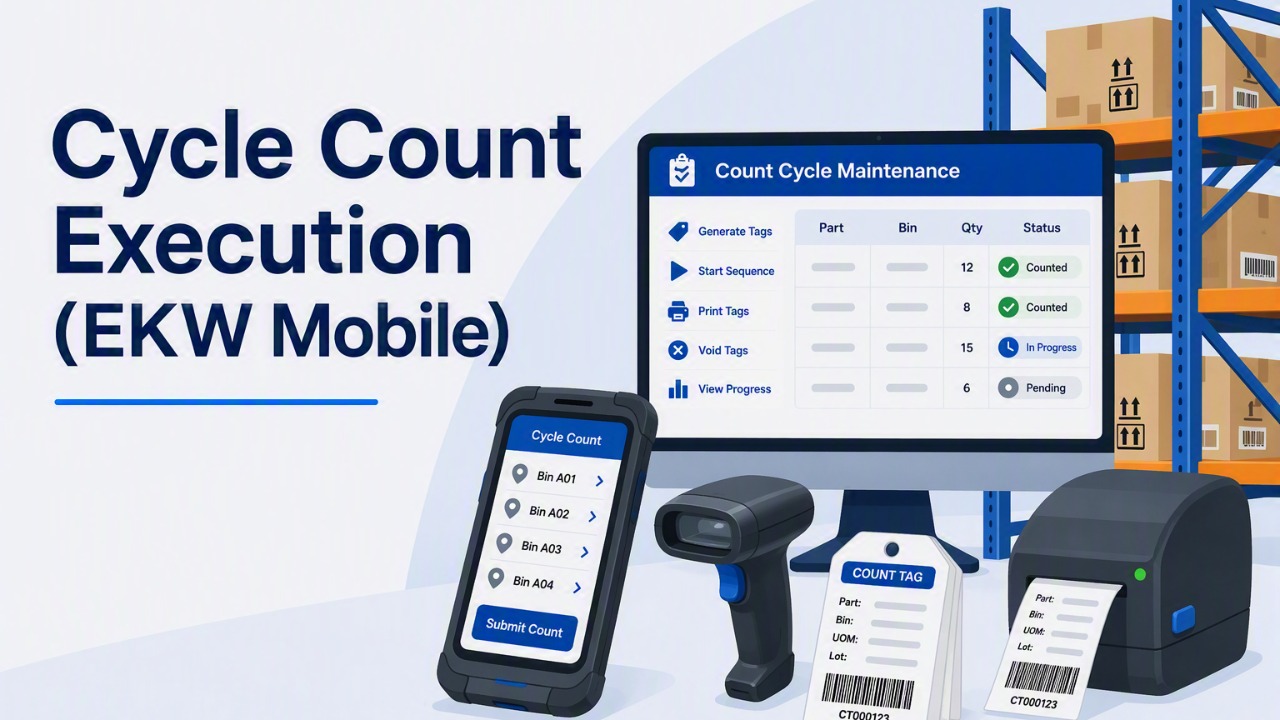

On the EKW mobile device home screen, select Cycle Count Ext.
The Cycle Count Ext function is used to perform cycle counts on the mobile device after the count sequence has been started in Epicor Kinetic.
Note: Count tags will only be available in Cycle Count Ext once the count tags have been generated and the Start Count Sequence process has been completed in Count Cycle Maintenance.

Select the Cycle Count you wish to begin.
In most cases, select the cycle count with a Cycle Sequence Date matching today's date, as this will be the active count that has been released from Epicor.
Example: In the screenshot shown:
Cycle Period: September - F27
Number of Parts: 11
Number of PCIDs: 0
Cycle Sequence Date: 04 Sep 2026

Select All Matches

A list of all count tags included in the selected cycle count is displayed.
The tags are sorted by Bin Number to allow counts to be completed in a logical warehouse sequence.
Each tag displays the:
Tag Number
Bin Location
Part Number
Expected Quantity

Enter the physical quantity counted for the selected part and click Save.
Repeat this process for each remaining tag until all count tags have been completed.

The Unreturned Tags tab displays outstanding tags that still require counting, while the Returned tab displays tags that have been counted and submitted. All tags should appear in the Returned tab once the cycle count is complete.
If a count was entered incorrectly, select the tag to reopen it and make any necessary corrections before the cycle count is finalised.