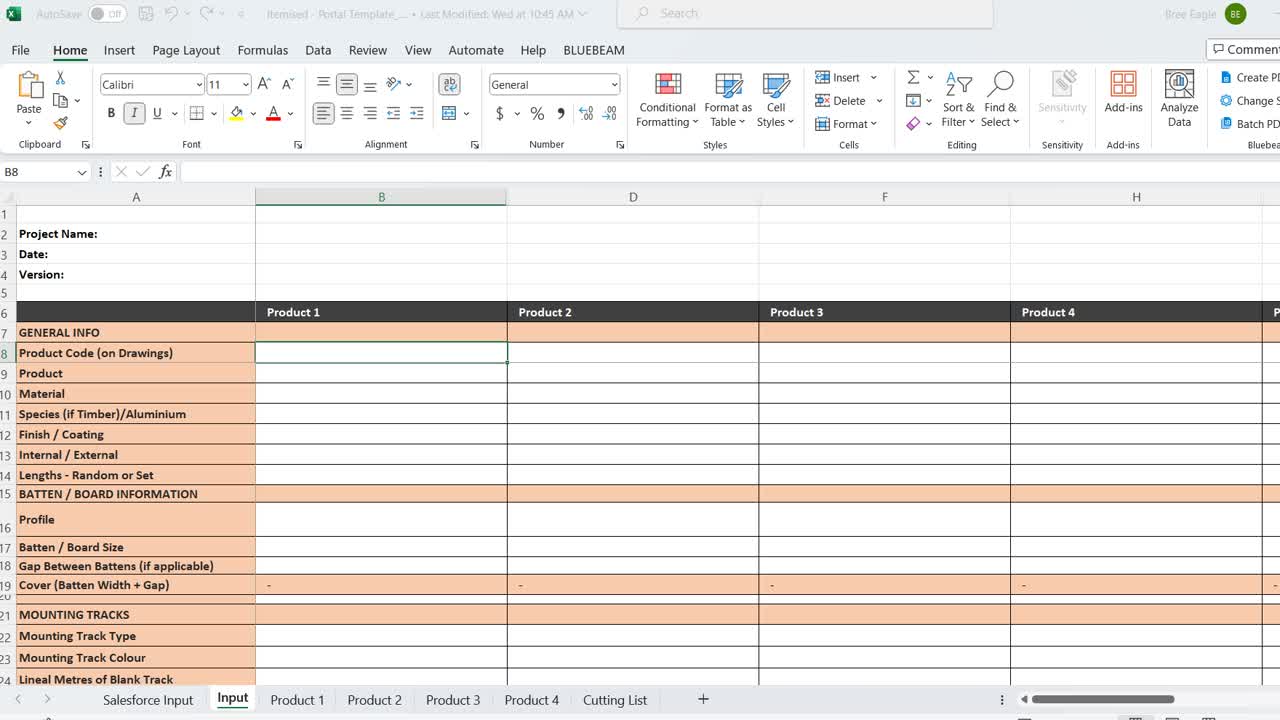
Locate the most recent portal, make a copy in your documents, turn auto save off & pin it to your app so it is easily accessible. If there are any future updates to the portal you will be notified & can make another copy of the next revision in your documents.
Open the Itemised Portal and enter in the current specifications for each code under the "Input" tab. Any changes required to the previously quoted codes should be noted on the BOQ request, otherwise you can work purely off what we have quoted in the m2 rates.
Ensure that all fields are filled out, if you leave any of the fields blank, those specific codes will not be generated & you may miss allowing for these when typing up the Salesforce quotation.
As a general rule, we work off the Set Lengths side of the portal, so select Set Lengths even if we are planning on supplying random lengths. The only time we use Random Lengths is if we don't have drawings and have been given an m2 area by the client or if we can't box our MUPS.
Any specific details for the codes that can't be entered into the "Input" tab, e.g. tinted coatings, certified timber, wood-finish wrap colours can be noted under the relevant Product tab.

Enter in all the areas required from your mark-ups into the Set Lengths side of the portal. Make sure the batten length is entered correctly. If there are a lot of mark-ups you can export the mark-ups into a CSV file to be copied directly into the portal (see the following step).
To export the mark-ups into a CSV file, open the list of mark-ups and follow the above video steps. You can then copy the dimesions of each area from this file directly to the portal.
The length of an area (width) can be entered exactly as shown on the mark-ups however we recommend rounding up the batten/board lengths to the nearest 50mm or 100mm to ensure we supply adequate lengths to fulfil their area. This is more important for set lengths and/or aluminium.

Note the required trims that the portal doesn't bring in automatically (e.g. corner profiles) to the side. By noting these details you will be reminded to enter these into Salesforce as the codes aren't automatically generated by the portal.
To ensure you have allowed for all required trims, we recommend reading through the BOQ codes (link in step below) to make sure nothing has been overlooked. Doing this may prompt you to remember that access hatches are required or they will need back cover plates.
Link to BOQ codes: https://wfarch.sharepoint.com/:x:/s/EstimatingTeam/EcbgVl1aQJJFlk01AYX6fccBDGk43lga_Dfz-CdLPRCJIw?e=0ee9j8
If there is anything on the portal that you are adding e.g. track lengths or if you are combining lengths for aluminium, show your workings under the relevent product tab so anyone looking at the portal can see how you have come to your quantities.
If combining multiple aluminium lengths into 6.2m lengths we have a cutting list tab where you can combine the lengths needed to make up close to 6.2m lengths.

There is also a Sequenced areas tab to help work out clip centres for areas that have multiple battens in a sequence. There is an example already in the tab that you can delete (only edit the green areas) to show you how it would look. In this case there is 5 repeating battens.
Repeat the above steps for all codes (if more than 1 code is required) and once complete we can start entering the data into Salesforce. See the following Knowbe: "Creating a BOQ in Salesforce".