Knowby Sculptform
Knowby
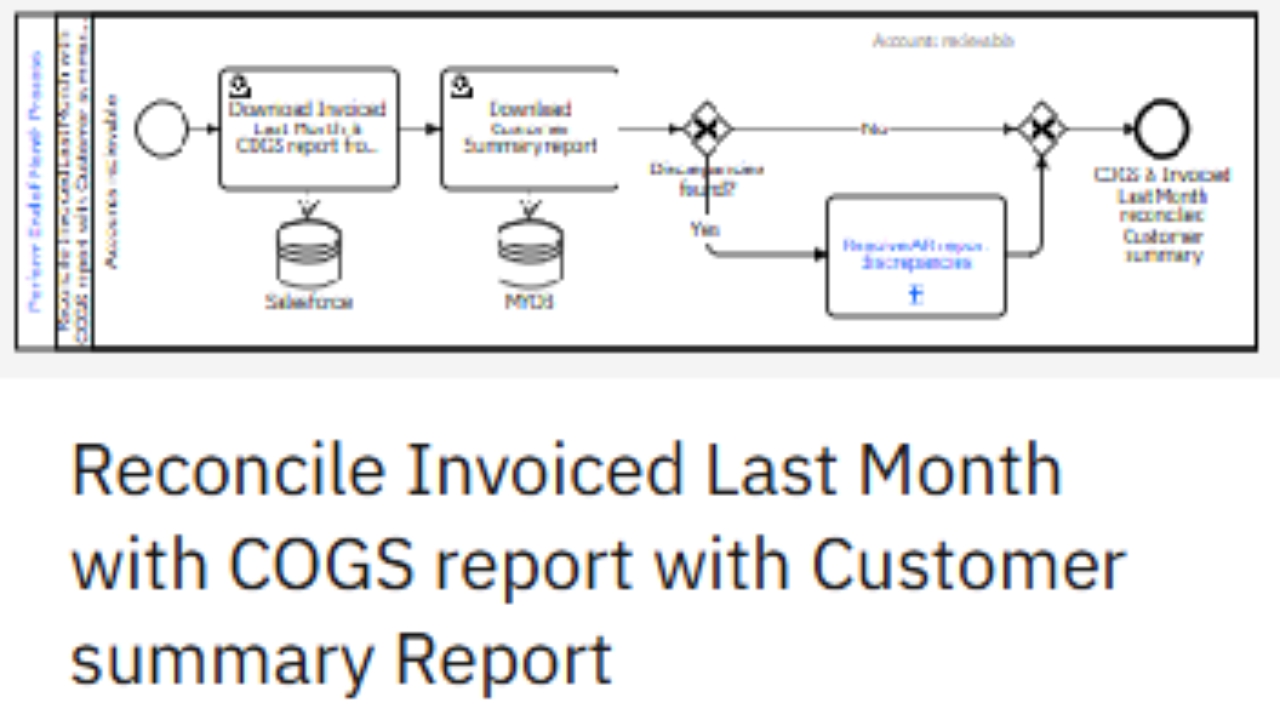
Reconcile Invoiced Last Month with COGS Report with Customer Summary Report
COGS Report
COGS Report
1
Step 1 of 10
<p>This report must be completed <strong>by EOM.</strong></p><p></p><p>SFM uses different accounting software across regions, from which the reports can be extracted:</p><ul><li><p><strong>MYOB:</strong> AU &amp; NZ</p></li><li><p><strong>Xero:</strong> USA &amp; UK</p></li></ul><p>All reports are saved in:<br><strong>Finance → Reports → Fiscal Year</strong><br><br>Copy paste COGS Report Format (always update the file name with date)</p>

This report must be completed by EOM.

SFM uses different accounting software across regions, from which the reports can be extracted:

  • MYOB: AU & NZ

  • Xero: USA & UK

All reports are saved in:
Finance → Reports → Fiscal Year

Copy paste COGS Report Format (always update the file name with date)

2
Step 2 of 10
<p><strong>Download Invoiced last month from MYOB (AU &amp; NZ)</strong></p><p></p><p>Go to Dashboard</p><p>&gt;Reports</p><p>&gt;Sales</p><p>&gt;Sales [Customer Summary]</p><p>-Set the report date to last month</p><p>&gt;Export to Excel.</p><p></p><p>The extracted report will automatically open as an Excel file.</p>

Download Invoiced last month from MYOB (AU & NZ)

Go to Dashboard

>Reports

>Sales

>Sales [Customer Summary]

-Set the report date to last month

>Export to Excel.

The extracted report will automatically open as an Excel file.

3
Step 3 of 10
<p>Copy and paste the extracted report into the<strong> AU or NZ sheet.</strong></p>

Copy and paste the extracted report into the AU or NZ sheet.

4
Step 4 of 10
<p><strong>Download Invoiced last month from XERO (USA &amp; UK)</strong></p><p></p><p>Go to Report</p><p>Select Receivable Invoice Summary</p><p></p>

Download Invoiced last month from XERO (USA & UK)

Go to Report

Select Receivable Invoice Summary

5
Step 5 of 10
<p>Set <strong>Date</strong> to Last month</p><p>Click <strong>Update</strong></p><p></p><p>Click <strong>Contact</strong> to sort the list A–Z.</p><p>Click <strong>Reorder Columns</strong>, then <strong>drag to correct&nbsp;</strong>columns, accordingly, based on report.</p><p>Click<strong> Update</strong> to apply the changes.</p><p></p><p>Click <strong>Export</strong>, then select <strong>Excel</strong> to extract the report.</p><p></p><p>The extracted report will go to your Downloads folder.</p>

Set Date to Last month

Click Update

Click Contact to sort the list A–Z.

Click Reorder Columns, then drag to correct columns, accordingly, based on report.

Click Update to apply the changes.

Click Export, then select Excel to extract the report.

The extracted report will go to your Downloads folder.

6
Step 6 of 10
<p>Copy and paste the extracted report into the <strong>USA or UK sheet.</strong></p>

Copy and paste the extracted report into the USA or UK sheet.

7
Step 7 of 10
<p><strong>Download the Invoiced Last Month with COGS from Salesforce</strong></p><p></p><p>Open the <strong>COGS Report</strong> in Salesforce (SF).</p><ul><li><p>Click Billing Company to sort the list A–Z.</p></li><li><p>Click the <strong>arrow down beside Edit</strong></p></li><li><p>Select <strong>Export</strong>.</p></li></ul><p>The extracted file will automatically be saved to <strong>Downloads</strong> folder.</p>

Download the Invoiced Last Month with COGS from Salesforce

Open the COGS Report in Salesforce (SF).

  • Click Billing Company to sort the list A–Z.

  • Click the arrow down beside Edit

  • Select Export.

The extracted file will automatically be saved to Downloads folder.

8
Step 8 of 10
<p>Copy and paste the extracted report into the Invoiced LM with COGs sheet</p><p></p><p>Get the total of each region, for counter checking.</p>

Copy and paste the extracted report into the Invoiced LM with COGs sheet

Get the total of each region, for counter checking.

9
Step 9 of 10
<p>Each region has its own sheet for comparing the MYOB/Xero report with the <strong>SF COGS Report</strong>.</p><p></p><p>Identify any <strong>False</strong>&nbsp;results and replace the value with a <strong>note explaining the reason for the discrepancy</strong>.</p><p></p><p>Errors should have already been resolved during the <strong>Reconciliation of Aged Receivables with the Debtor Report (Comparison Report)</strong>.&nbsp;</p>

Each region has its own sheet for comparing the MYOB/Xero report with the SF COGS Report.

Identify any False results and replace the value with a note explaining the reason for the discrepancy.

Errors should have already been resolved during the Reconciliation of Aged Receivables with the Debtor Report (Comparison Report)

10
Step 10 of 10
<p>After identifying the false result in the COGS Report, attach and send the report to Ken, Sabi, and Trevor.</p><p></p><p>File the email in the AccountsAR/Reports/Information folder.</p>

After identifying the false result in the COGS Report, attach and send the report to Ken, Sabi, and Trevor.

File the email in the AccountsAR/Reports/Information folder.