
Knowby
User Roles and Permissions
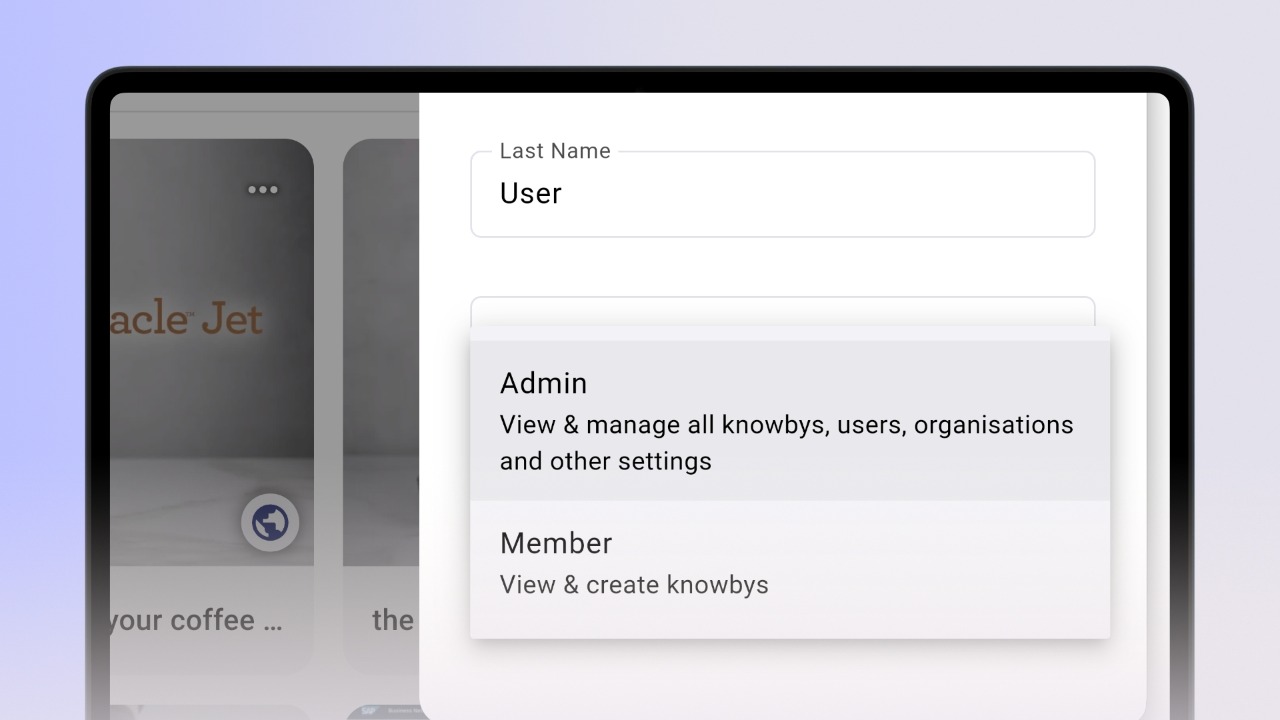
This guide explains what Owners/Admins and Members can do in Knowby. Use this to ensure everyone has the right level of access for their job.
1
Step 1 of 5
<p>Both roles can start building content, but the path to going live is different:</p><ul><li><p>Both Admins and Members can create, edit, and delete their own knowbys while in draft mode.</p></li><li><p>Members <strong>cannot</strong> publish their own work directly. Once finished, they must submit their knowby for approval.</p></li><li><p>Only Owners/Admins have the authority to publish their own content immediately.</p></li></ul><p></p>

Both roles can start building content, but the path to going live is different:

  • Both Admins and Members can create, edit, and delete their own knowbys while in draft mode.

  • Members cannot publish their own work directly. Once finished, they must submit their knowby for approval.

  • Only Owners/Admins have the authority to publish their own content immediately.

2
Step 2 of 5
<p>Publishing content created by others requires specific permissions:</p><ul><li><p><strong>Owner / Admin:</strong> Can review, reject, or publish any knowby submitted by the team.</p></li><li><p><strong>Member (as Approver):</strong> A standard Member can only review and publish work if they have been specifically designated as an <strong>Approver</strong> for the entire organisation.</p></li><li><p><strong>Standard Member:</strong> If not set as an approver, they can only view published knowbys and create their own drafts for submission.</p></li></ul><p></p>

Publishing content created by others requires specific permissions:

  • Owner / Admin: Can review, reject, or publish any knowby submitted by the team.

  • Member (as Approver): A standard Member can only review and publish work if they have been specifically designated as an Approver for the entire organisation.

  • Standard Member: If not set as an approver, they can only view published knowbys and create their own drafts for submission.

3
Step 3 of 5
<p>Full control over the organisation’s content is reserved for <strong>Owners/Admins</strong>:</p><ul><li><p><strong>Edit/Delete Any Content:</strong> Admins can modify or remove knowbys created by any user.</p></li><li><p><strong>Analytics:</strong> Admins see performance data for the whole organisation, while Members only see data for their own work.</p></li></ul><p></p>

Full control over the organisation’s content is reserved for Owners/Admins:

  • Edit/Delete Any Content: Admins can modify or remove knowbys created by any user.

  • Analytics: Admins see performance data for the whole organisation, while Members only see data for their own work.

4
Step 4 of 5
<p>High-level management tasks are strictly for <strong>Owners/Admins</strong>:</p><ul><li><p><strong>Users &amp; Invites:</strong> Adding new users, removing them, or changing their roles.</p></li><li><p>Creating teams and managing which users belong to them.</p></li><li><p>Customizing organisation colours, logos, and QR codes.</p></li><li><p>Setting up the categories for the organisation.</p></li></ul><p></p>

High-level management tasks are strictly for Owners/Admins:

  • Users & Invites: Adding new users, removing them, or changing their roles.

  • Creating teams and managing which users belong to them.

  • Customizing organisation colours, logos, and QR codes.

  • Setting up the categories for the organisation.

5
Step 5 of 5
<p>Assign the <strong>Member</strong> role to your content creators.</p><blockquote style="background-color: var(--k-quote-bg-success);"><p>If you want a Member to help manage the quality of the library, remember to also toggle their <strong>Approver</strong> status in the settings.</p></blockquote><blockquote style="background-color: var(--k-quote-bg-warning);"><p>Use the <strong>Admin</strong> role only for those who need to manage users and branding.</p></blockquote><p></p>

Assign the Member role to your content creators.

If you want a Member to help manage the quality of the library, remember to also toggle their Approver status in the settings.

Use the Admin role only for those who need to manage users and branding.