
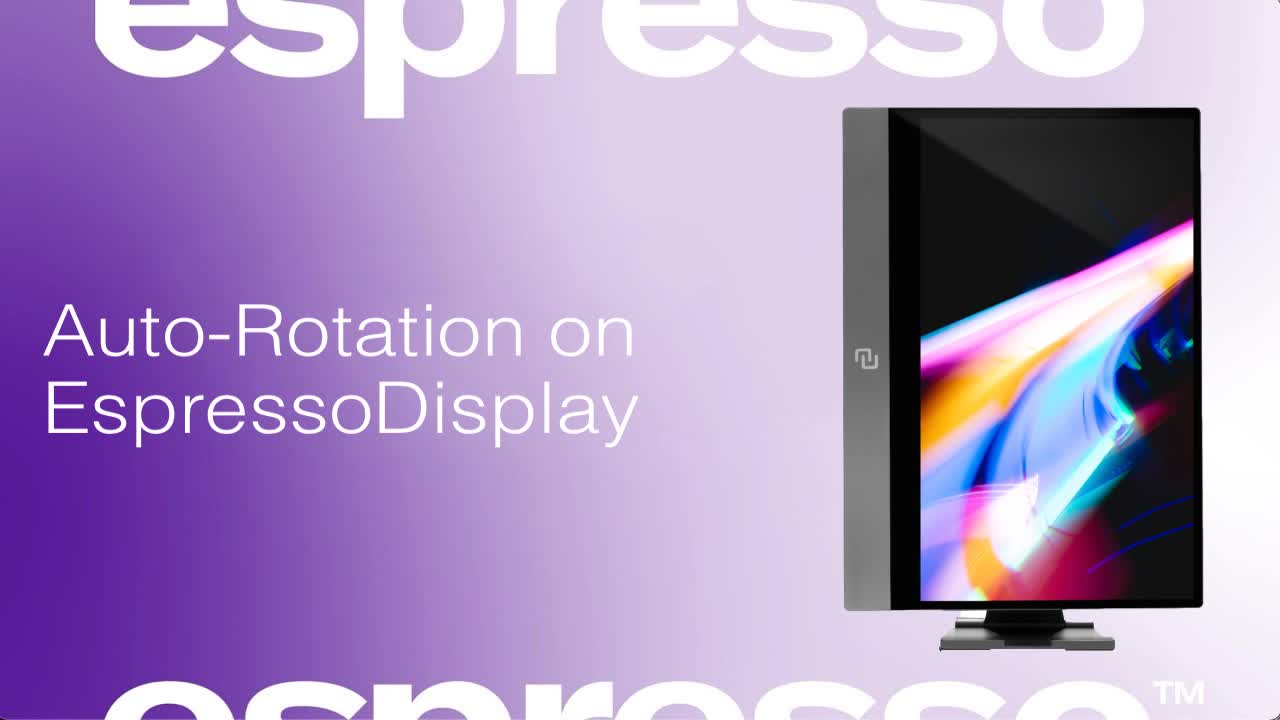
Enabling Auto-Rotation on espressoDisplay
Auto-Rotate is a new feature on the espressoDisplay. This means you are able to transition from viewing your screen in landscape view to portrait view simply by rotating your screen.
Auto-Rotate is a new feature on the espressoDisplay. This means you are able to transition from viewing your screen in landscape view to portrait view simply by rotating your screen.
1
Step 1 of 5Ensure Software Installation
Make sure you have the espressoFlow software installed on your device. Download here
2
Step 2 of 5Install espressoFlow
Follow the on-screen instructions to install the espressoFlow software on your computer.
3
Step 3 of 5Connect Your Display
Ensure your EspressoDisplay is connected to your device using a compatible USB-C or Mini Display connection.
4
Step 4 of 5Enable Auto-Rotation
Once the software is installed, Auto-Rotation will be enabled automatically.
5
Step 5 of 5Rotate Your Display
Simply rotate your EspressoDisplay to switch between landscape and portrait views.
Note: Auto-Rotation is only compatible with USB-C & Mini Display connections.