
Knowby
RAE005 – EWP Escape Trainers Guide
Correct setup processes to be used for training and assessment of escaping from a Mobile Elevated Work Platform (MEWP or EWP) using the Controlled Descent Device (CDD)
1
Step 1 of 8
<p>Ensure your CDD Training Kit Contains the right materials</p>

Ensure your CDD Training Kit Contains the right materials

2
Step 2 of 8
<p>Tip: Carabiner rating will be stamped on the flat part of the device</p>

Tip: Carabiner rating will be stamped on the flat part of the device

3
Step 3 of 8

Plan the best setup/configuration for your MEWP.

There are four (4) CDD attachment configuration options for MEWP Escape due to different anchorage configurations, availability and location of steps.

The preference is CDD setup options 1 and 2, which require a rear step.

4
Step 4 of 8
<p>Complete an eHIRAC on the Trainers iDevice, involving ALL workers onsite, prior to the MEWP being set up for the assessments.</p>
<p>Summarise the additional controls for the activity, including those explained in the following steps:</p>

Complete an eHIRAC on the Trainers iDevice, involving ALL workers onsite, prior to the MEWP being set up for the assessments.

Summarise the additional controls for the activity, including those explained in the following steps:

5
Step 5 of 8
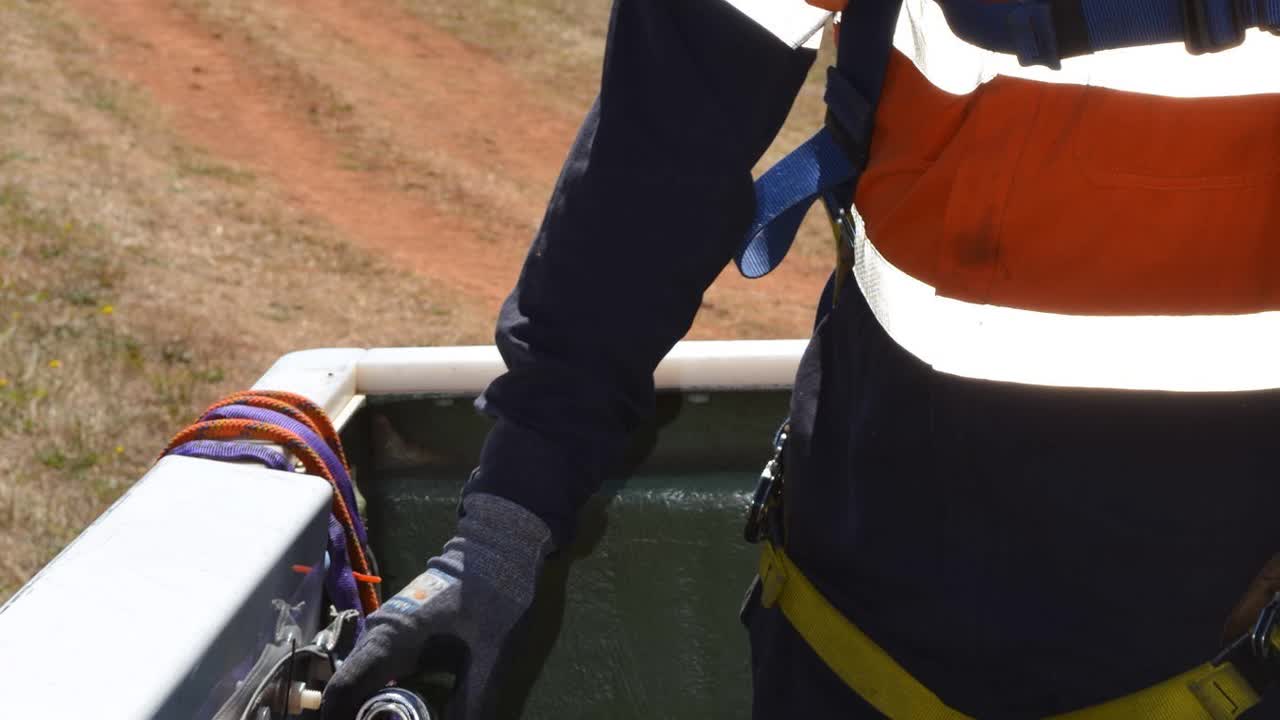
<p>Attach the CDD to the MEWP attachment points. It is important you do this step yourself.</p>
<p>Double confirm the attachment by a second person who is licenced in the operation of a MEWP</p>

Attach the CDD to the MEWP attachment points. It is important you do this step yourself.

Double confirm the attachment by a second person who is licenced in the operation of a MEWP

6
Step 6 of 8
<p>Photograph the attachment of the CDD to the MEWP</p>

Photograph the attachment of the CDD to the MEWP

7
Step 7 of 8
<p>Put photo/s in the eHIRAC’s additional information section</p>

Put photo/s in the eHIRAC’s additional information section

8
Step 8 of 8
<p>Optional: Include additional comments if appropriate - eg; your name and the licensed person for double confirmation (if not already included at 'Additional Controls')</p>

Optional: Include additional comments if appropriate - eg; your name and the licensed person for double confirmation (if not already included at 'Additional Controls')