Knowby Sculptform
Knowby
Entering Stock( PO's) invoices in Salesforce
Entering Stock invoices in Salesforce Type PO number in search E.g. PO-12053
1
Step 1 of 14
<p>Entering Stock invoices in Salesforce
Type PO number in search E.g. PO-12053</p>

Entering Stock invoices in Salesforce Type PO number in search E.g. PO-12053

2
Step 2 of 14
<p>Entering Stock invoices in Salesforce
Type PO number in search E.g. PO-12053</p><p>The below page will appear after clicking on PO-12053.
Check the Name of the company to make sure you are on the right page.
Check Status of the order (complete or partially complete).
Order has been received or not.
Always refer delivery docket while entering the invoice</p><p>•
•
•
•</p>

Entering Stock invoices in Salesforce Type PO number in search E.g. PO-12053

The below page will appear after clicking on PO-12053. Check the Name of the company to make sure you are on the right page. Check Status of the order (complete or partially complete). Order has been received or not. Always refer delivery docket while entering the invoice

• • • •

3
Step 3 of 14
<p>Click the supplier invoice on the right hand corner on the top to enter the invoice (See
below )</p><p>After clicking on the supplier invoice below page will appear</p>

Click the supplier invoice on the right hand corner on the top to enter the invoice (See below )

After clicking on the supplier invoice below page will appear

4
Step 4 of 14
<p>Click the supplier invoice on the right hand corner on the top to enter the invoice (See
below )</p><p>After clicking on the supplier invoice below page will appear</p><p>Click on invoice date it will appear like below</p>

Click the supplier invoice on the right hand corner on the top to enter the invoice (See below )

After clicking on the supplier invoice below page will appear

Click on invoice date it will appear like below

5
Step 5 of 14
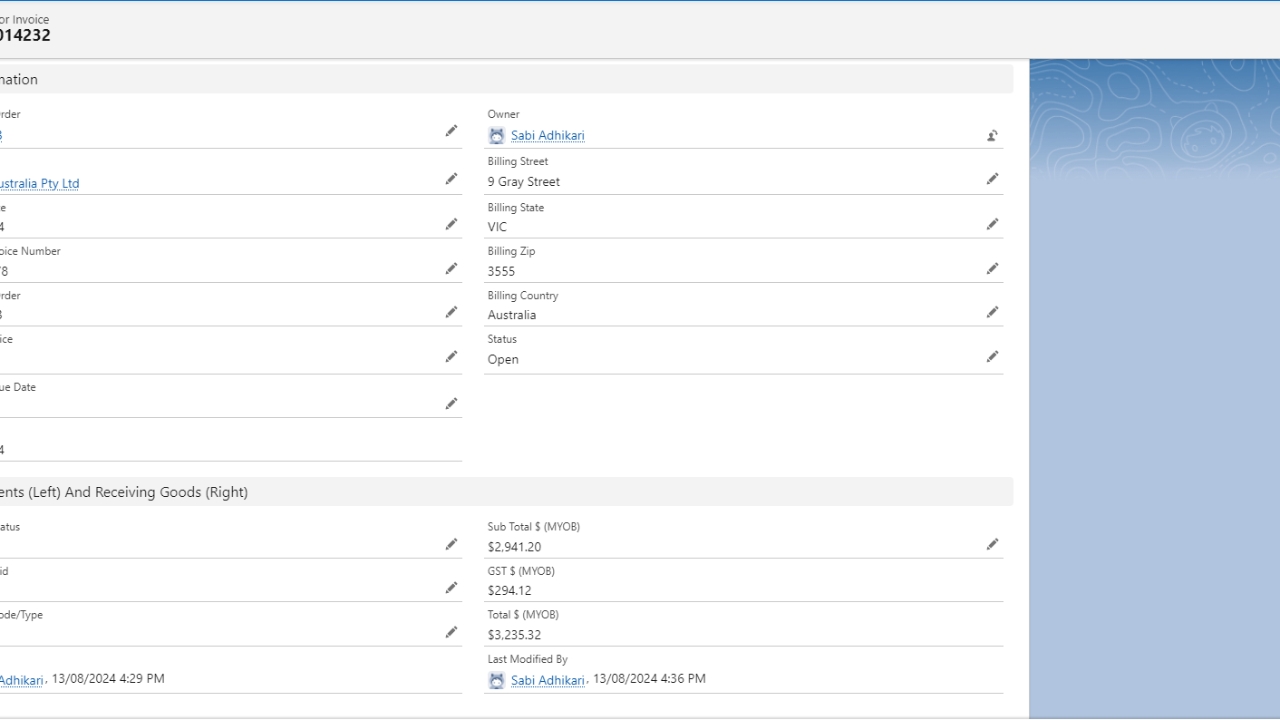
<p>Enter the date same as on the supplier invoice
Enter invoice number
If the status of the order is partially complete, then put 12053A for this invoice. In this
PO’s we have two invoices to enter so in the first invoice put 12053A and for the second
invoice 12053B.</p><p>•
•</p><p>If the status of the order is complete, and there is only one invoice for then tick on the
single invoice.
Enter Ex-GST figure from the invoice
Click Save</p>

Enter the date same as on the supplier invoice Enter invoice number If the status of the order is partially complete, then put 12053A for this invoice. In this PO’s we have two invoices to enter so in the first invoice put 12053A and for the second invoice 12053B.

• •

If the status of the order is complete, and there is only one invoice for then tick on the single invoice. Enter Ex-GST figure from the invoice Click Save

6
Step 6 of 14
<p>•
•</p>

• •

7
Step 7 of 14
<p>Second invoice
Click on the PO-12053 to return to the main page</p>

Second invoice Click on the PO-12053 to return to the main page

8
Step 8 of 14
<p>Second invoice
Click on the PO-12053 to return to the main page</p>

Second invoice Click on the PO-12053 to return to the main page

9
Step 9 of 14
<p>Refresh the page to see the invoice you have just entered.</p><p>Then Go to Total Section on this PO’s to check if there is any variation.If there is any variation
on the receved Figure( BY Todd) and the invoice figure we need to make an adjustment.</p>

Refresh the page to see the invoice you have just entered.

Then Go to Total Section on this PO’s to check if there is any variation.If there is any variation on the receved Figure( BY Todd) and the invoice figure we need to make an adjustment.

10
Step 10 of 14
<p>Refresh the page to see the invoice you have just entered.</p><p>Then Go to Total Section on this PO’s to check if there is any variation.If there is any variation
on the receved Figure( BY Todd) and the invoice figure we need to make an adjustment.</p><p>For the adjustment go to Purchase order Lines View.</p>

Refresh the page to see the invoice you have just entered.

Then Go to Total Section on this PO’s to check if there is any variation.If there is any variation on the receved Figure( BY Todd) and the invoice figure we need to make an adjustment.

For the adjustment go to Purchase order Lines View.

11
Step 11 of 14
<p>Refresh the page to see the invoice you have just entered.</p><p>Then Go to Total Section on this PO’s to check if there is any variation.If there is any variation
on the receved Figure( BY Todd) and the invoice figure we need to make an adjustment.</p><p>For the adjustment go to Purchase order Lines View.</p>

Refresh the page to see the invoice you have just entered.

Then Go to Total Section on this PO’s to check if there is any variation.If there is any variation on the receved Figure( BY Todd) and the invoice figure we need to make an adjustment.

For the adjustment go to Purchase order Lines View.

12
Step 12 of 14
<p>In this case received figure and Invoice figure is same we don’t have to make any adjustments.
For the adjustment we used Total ex- GST figure from the invoices divided by QTY received.</p><p>These invoices will link to MYOB so drag the invoices to MYOB in-tray and link the invoices when
they linked to MYOB. Click on the link to exiting bill.</p>

In this case received figure and Invoice figure is same we don’t have to make any adjustments. For the adjustment we used Total ex- GST figure from the invoices divided by QTY received.

These invoices will link to MYOB so drag the invoices to MYOB in-tray and link the invoices when they linked to MYOB. Click on the link to exiting bill.

13
Step 13 of 14
<p>In this case received figure and Invoice figure is same we don’t have to make any adjustments.
For the adjustment we used Total ex- GST figure from the invoices divided by QTY received.</p><p>These invoices will link to MYOB so drag the invoices to MYOB in-tray and link the invoices when
they linked to MYOB. Click on the link to exiting bill.</p>

In this case received figure and Invoice figure is same we don’t have to make any adjustments. For the adjustment we used Total ex- GST figure from the invoices divided by QTY received.

These invoices will link to MYOB so drag the invoices to MYOB in-tray and link the invoices when they linked to MYOB. Click on the link to exiting bill.

14
Step 14 of 14
<p>Click Link.</p>

Click Link.