
Add and arrange steps
Add steps to your knowby, upload a photo or video to each one, and copy, move or delete steps.
Add steps to your knowby, upload a photo or video to each one, and copy, move or delete steps.
1
Step 1 of 4Open the Steps tab. To add media to a step, drag a photo or video into the grey area, or click Browse.
Then type your instruction in the Step text field.
Good to know: You can upload JPG or PNG images up to 30 MB, and MP4, MOV or AVI videos up to 500 MB.
2
Step 2 of 4To add a new step, click + under the current step. Then add its media the same way and type its Step text.
3
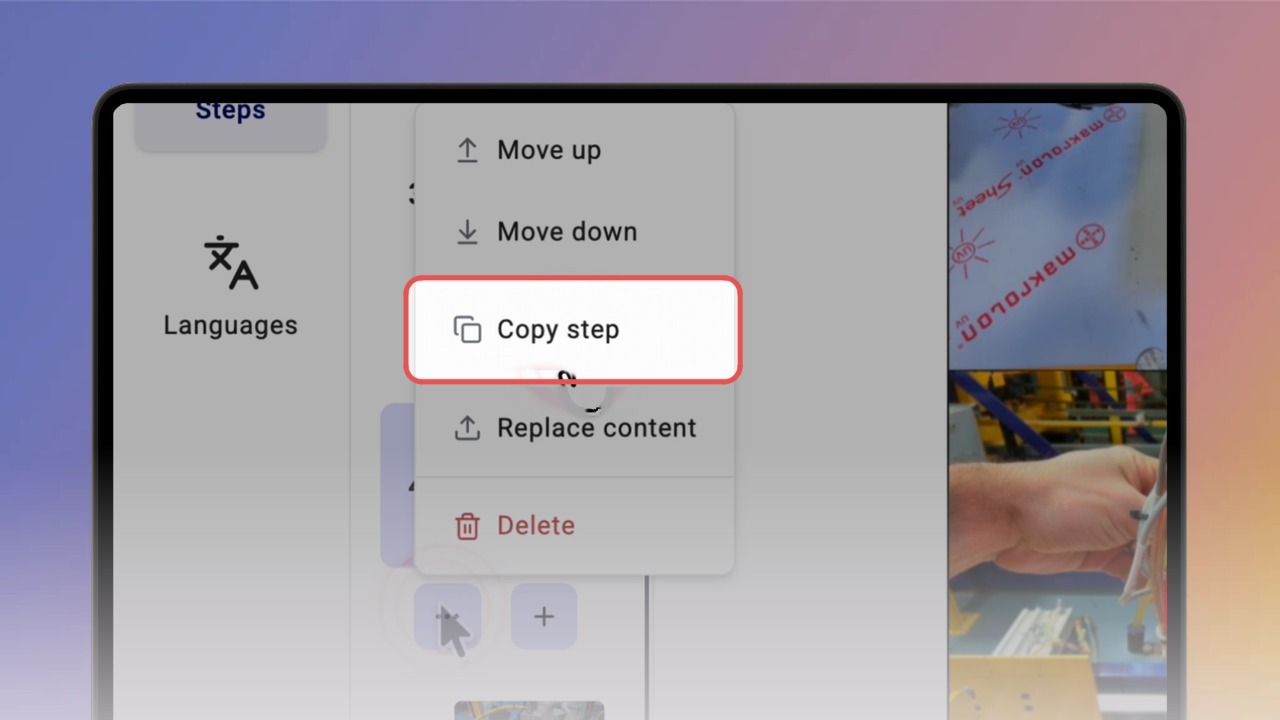
Step 3 of 4Click ⋯ under a step to Move up, Move down, Copy step, Replace content or Delete it.
Good to know: A copied step appears right below the original.
4
Step 4 of 4To reorder steps, drag a step thumbnail to a new position in the list.
Tip: To edit a photo or video, see “
Edit media in a step ”. To style the text, see “Format step text ”.