
Knowby
Turn a video into step-by-step knowby
Upload a video with voiceover and watch Knowby turn it into step-by-step instructions.
1
Step 1 of 9

Record your screen or film yourself doing a task, the full process — just narrate each action and pause briefly between actions. Video Intelligence will create the steps for you.

Don't have a video yet? Try example video → When it opens, click "⋮" in the bottom right of the player → Download.

2
Step 2 of 9

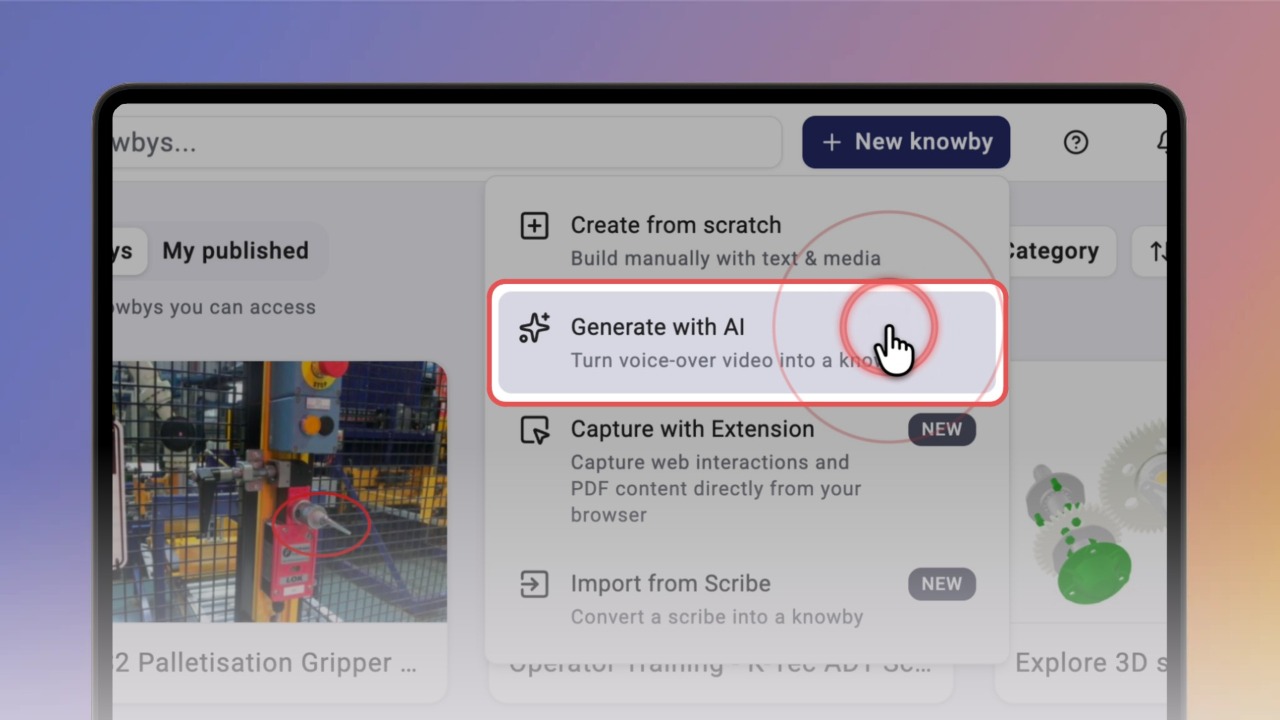
Click New Knowby → Generate with AI, then upload your video (MP4, MOV, AVI · max 500MB).

Make sure your video has a voiceover, so our AI can split it into steps correctly.

3
Step 3 of 9

Multimodal AI listens to your voice-over, watches the screen, and builds each step automatically from the transcript and video fragments. Your video and privacy stay safe and are never shared elsewhere.

⏱️ The process itself may take a bit of time — on average, up to a minute, depending on video length. You'll get a notification when it's ready.

4
Step 4 of 9

Once it's done, open your new knowby to review the steps.

The AI has already generated text, a cover image, title, and description — with each step matched to the right video fragment based on pauses or context.

5
Step 5 of 9

Click Edit to open Knowby Studio (the built-in knowby editor) and fine-tune anything.

The editor is built from several sections — the first is the Details tab, where you can set your own cover image or swap it for one of the options AI picked from your video.

You can also edit the title and description, and fill in optional details.

6
Step 6 of 9

In the Steps tab, you manage the steps AI cut from the full video.

For any step, you can Merge Steps as needed — this combines both the step text and the video fragment.

You can also duplicate a step along with all its data, replace the media with your own, remove, or reorder steps.

7
Step 7 of 9

You can add form fields to a step, letting you gather responses from users as they follow a knowby.

To use it, open the Form panel on the right. This collapsible panel lets you create and preview all your form fields.

You can learn more about forms in this guide.

8
Step 8 of 9

You can edit the text and format it to your liking.

The text editor supports: B Bold, I Italic, Aa Heading styles with font size control, numbered and bulleted lists, blockquotes with colours, hyperlinks, and linked knowbys — reference another guide directly in the step.

9
Step 9 of 9

Once you're done working on the guide, click Done. Your guide is now ready for publishing.

Want to explore everything you can do in Knowby Studio? See the Create a Knowby from Scratch guide

Or check out the guide on Publishing and the knowby approval process