
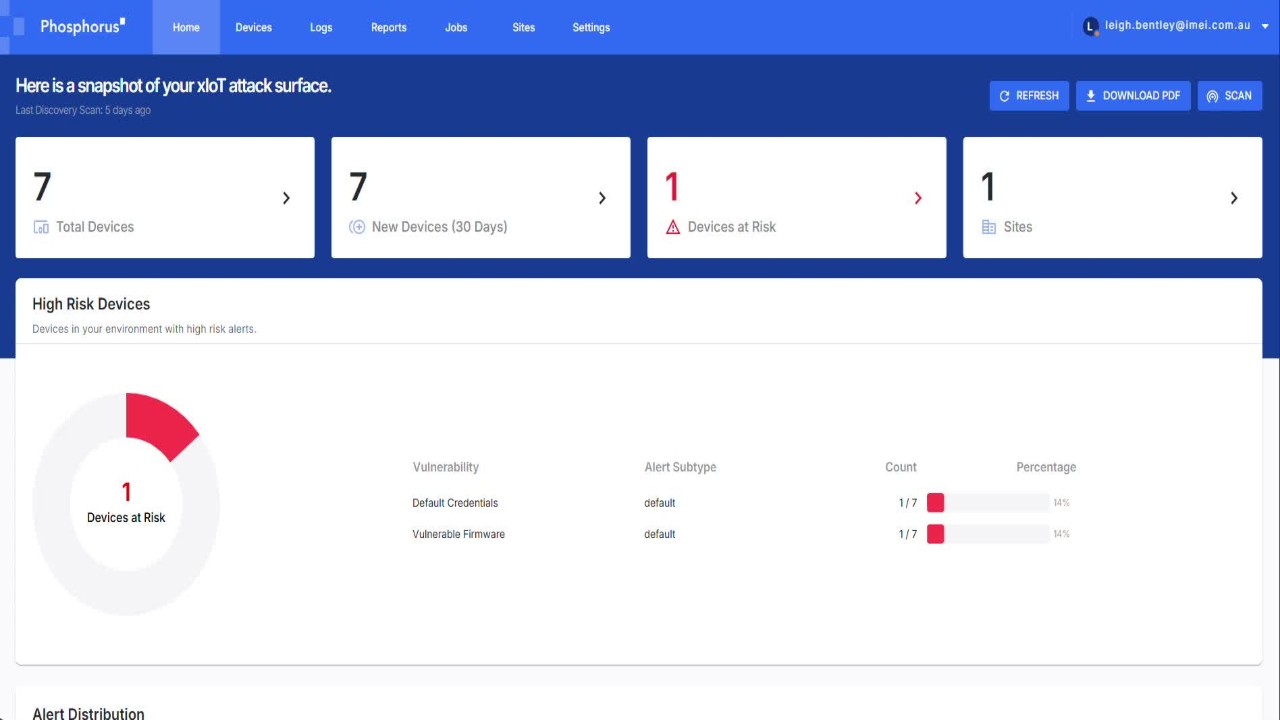
phosporus network scan 27 Aug
Hi, I'm Stuart.
Hi, I'm Stuart.
1
Step 1 of 34Hi, I'm Stuart.
2
Step 2 of 34Today we're working with Phosphorus and what we're going to do is we're going to run a scan to hopefully discover some new devices.
3
Step 3 of 34So to run a scan, this is under the jobs menu and then we do a new job.
4
Step 4 of 34So we're going to add a job and we're going to go scan devices.
5
Step 5 of 34We'll call this scan three.
6
Step 6 of 34Now S-site is defined as imylab.
7
Step 7 of 34That's the network segment we're going to be looking at. So we're just going to run as a standard XIoT enterprise discovery.
8
Step 8 of 34We can do more exhaustive scans if we need to, but we're just going to use this.
9
Step 9 of 34Just going to plug in the network segment that we've got.
10
Step 10 of 34So it's 1050.0/24. So when we do a scan, we need to target a network.
11
Step 11 of 34So this is the one we're going to be running this against. So now that that's all in order, I'm just going to hit submit.
12
Step 12 of 34Now the scan's started and we can see as the progress is underway.
13
Step 13 of 34So it takes a little bit of time to get started. As you can see, we're 22% right now.
14
Step 14 of 34So from my experience, it takes around about two and a half minutes to scan the subnet.
15
Step 15 of 34Okay, the scan is still underway. You can see that we have some profiled devices here. We can see that we now have six devices.
16
Step 16 of 34Two of these are two new cameras that have been picked up. So we'll just wait for this to finish. We'll go through the results.
17
Step 17 of 34Okay. Okay, great.
18
Step 18 of 34So that scan's now finished.
19
Step 19 of 34The progress is now 100%. We can see it takes a little bit of time just to update the values.
20
Step 20 of 34So apparently that was two and a half minutes around that scan. We can see that we have eight devices profiled.
21
Step 21 of 34So there were two new cameras as part of that scan.
22
Step 22 of 34Also, there's 12 excluded devices. So if we have a look at the excluded tab, this will include things like Windows servers or Linux servers and so on and so forth, or VMware gear.
23
Step 23 of 34So those devices can't be managed by phosphorus. So they're excluded from the search, but we can see we have got those eight profiled devices.
24
Step 24 of 34For example, if we look at the camera, we can then see, we can drill in and see the details around that camera.
25
Step 25 of 34We can also see any of the alerts for that device.
26
Step 26 of 34We can see here we've got two issues where the device has got default credentials set and it's also discontinued.
27
Step 27 of 34Another thing is that we can see this device for the phosphorus support.
28
Step 28 of 34We can see that this device supports interrogation, password change and also firmware update.
29
Step 29 of 34So that's good. We can also see what ports are open on the device.
30
Step 30 of 34Then from here, now that the scan's run, we can now see under devices.
31
Step 31 of 34Oh, it hasn't updated just yet. I spoke too soon.
32
Step 32 of 34Oh, sorry. Here we go. Vivo Tech. So yeah, so we can now see in under our devices section that we have got those devices.
33
Step 33 of 34Okay, wonderful. Talk to you soon. Thank you.
34
Step 34 of 34Bye.