
How to Set up UTM tracking Codes when posting marketing content
UTM tracking codes help us to track where Knowby website visitors are coming from and where leads are signing up from. It is important to add these to any marketing content that we are putting out on our social channels or ad campaigns
UTM tracking codes help us to track where Knowby website visitors are coming from and where leads are signing up from. It is important to add these to any marketing content that we are putting out on our social channels or ad campaigns
1
Step 1 of 30
How to Set uo UTM tracking Codes when posting marketing content
2
Step 2 of 30
Log into Hubspot
3
Step 3 of 30
Click "Settings".
4
Step 4 of 30
Click "Tracking Code".
5
Step 5 of 30
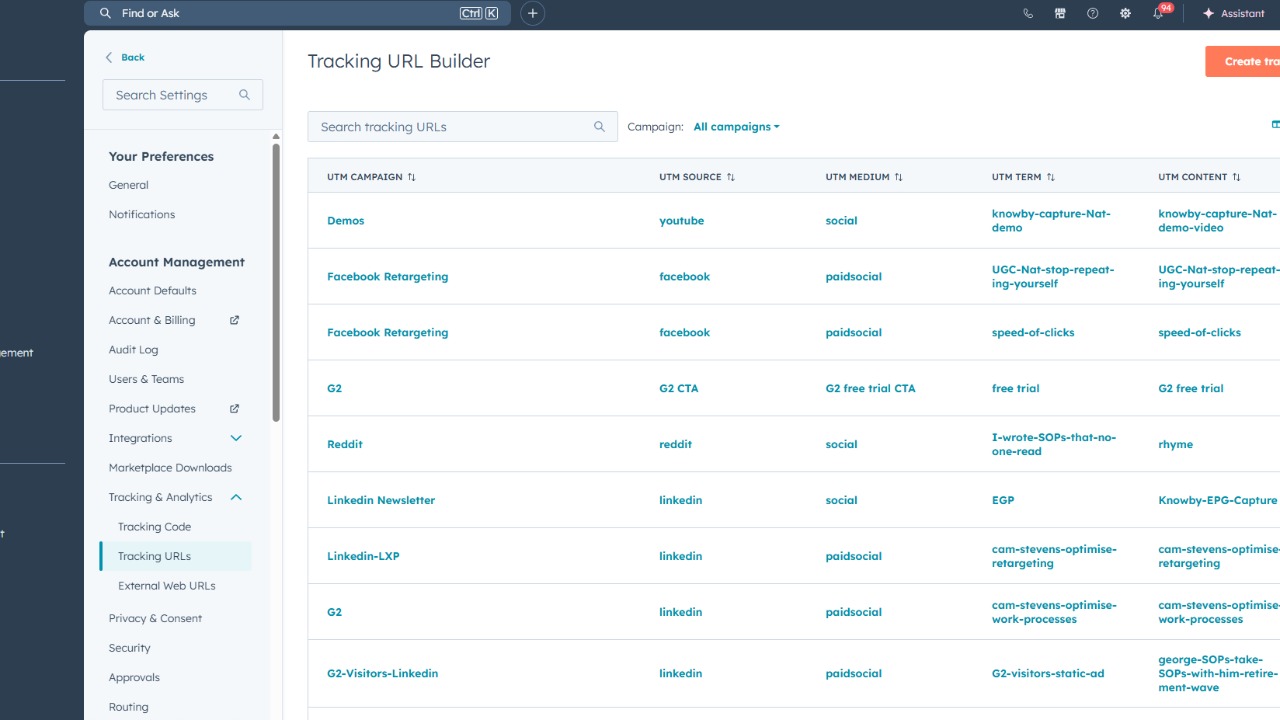
Click "Tracking URLs".
6
Step 6 of 30
Click "Create tracking URL".
7
Step 7 of 30Navigate to: Knowby Enterprise Guidance Platform | Digital Instructions Software
(or the webpage or landing page you want to link from the content)
e.g. if you want to link to the Chrome extension page go to that page and copy the url
8
Step 8 of 30Navigate to: Settings
9
Step 9 of 30
Enter: "https://www.knowby.co/knowby-capture-more-than-just-a-screen-capture-plugin"
10
Step 10 of 30
Click "Select a campaign".
11
Step 11 of 30
Click "Demos".
12
Step 12 of 30
Click "Select a source".
13
Step 13 of 30
Click "Organic social".
14
Step 14 of 30
Click "Select a social network".
15
Step 15 of 30
Click "YouTube".
16
Step 16 of 30
Click "UTM term".
17
Step 17 of 30
Enter: "knowby-capture-Nat-demo"
18
Step 18 of 30
Click "UTM term".
19
Step 19 of 30
Click "UTM content".
20
Step 20 of 30
Enter: "knowby-capture-Nat-demo-video"
21
Step 21 of 30
Click "Create".
22
Step 22 of 30
Click "Actions".
23
Step 23 of 30
Click "Copy tracking URL".
24
Step 24 of 30Navigate to: Untitled document - Google Docs
25
Step 25 of 30Navigate to: Knowby - Facebook ad copy.xlsx - Google Sheets
26
Step 26 of 30Navigate to: Untitled document - Google Docs
27
Step 27 of 30
Click here.
28
Step 28 of 30
Click here.
29
Step 29 of 30
Enter: "https://www.knowby.co/knowby-capture-more-than-just-a-screen-capture-plugin?utm_campaign=Demos&utm_source=youtube&utm_medium=social&utm_term=knowby-capture-Nat-demo&utm_content=knowby-capture-Nat-demo..."
30
Step 30 of 30
Click "Apply".