
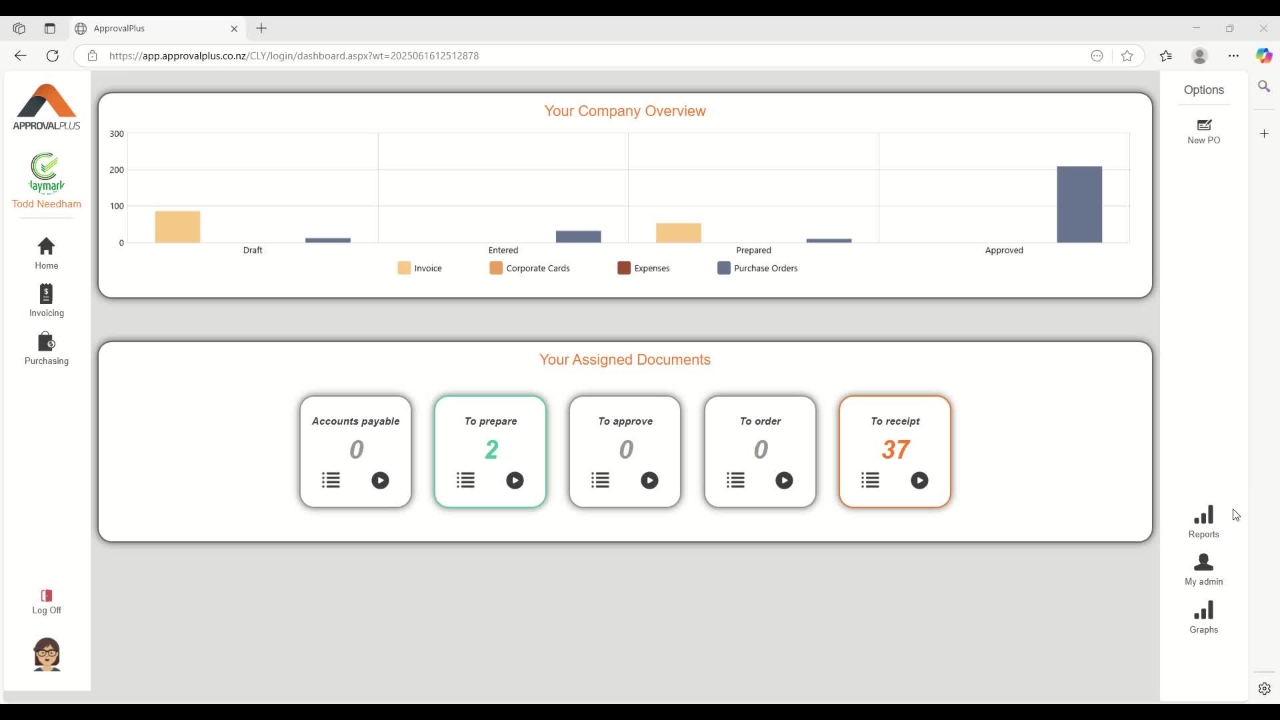
Approval Plus, Raising a new PO
Step by step instructions to raise a PO
Step by step instructions to raise a PO
1
Step 1 of 7From the home dashboard click on new purchase order.
2
Step 2 of 7Select the supplier, the delivery date that you need the equipment or service to be provided.
Select your pre-approver.
Add a small description in to the text field - What is this purchase order for?
Us the dropdown box to select if the job is quoted
Click on the Create Purchase Order Icon on the top right of your screen
3
Step 3 of 7Click on the pencil icon to edit the first line of the PO
4
Step 4 of 7Edit the purchase order, add the item description, add the price, quantity, and correct coding.
5
Step 5 of 7Select the approver and then click save.
6
Step 6 of 7To add additional purchase order lines, click on Add Order line and repeat step 5
7
Step 7 of 7Once all line items are complete click Go To PreApprover