
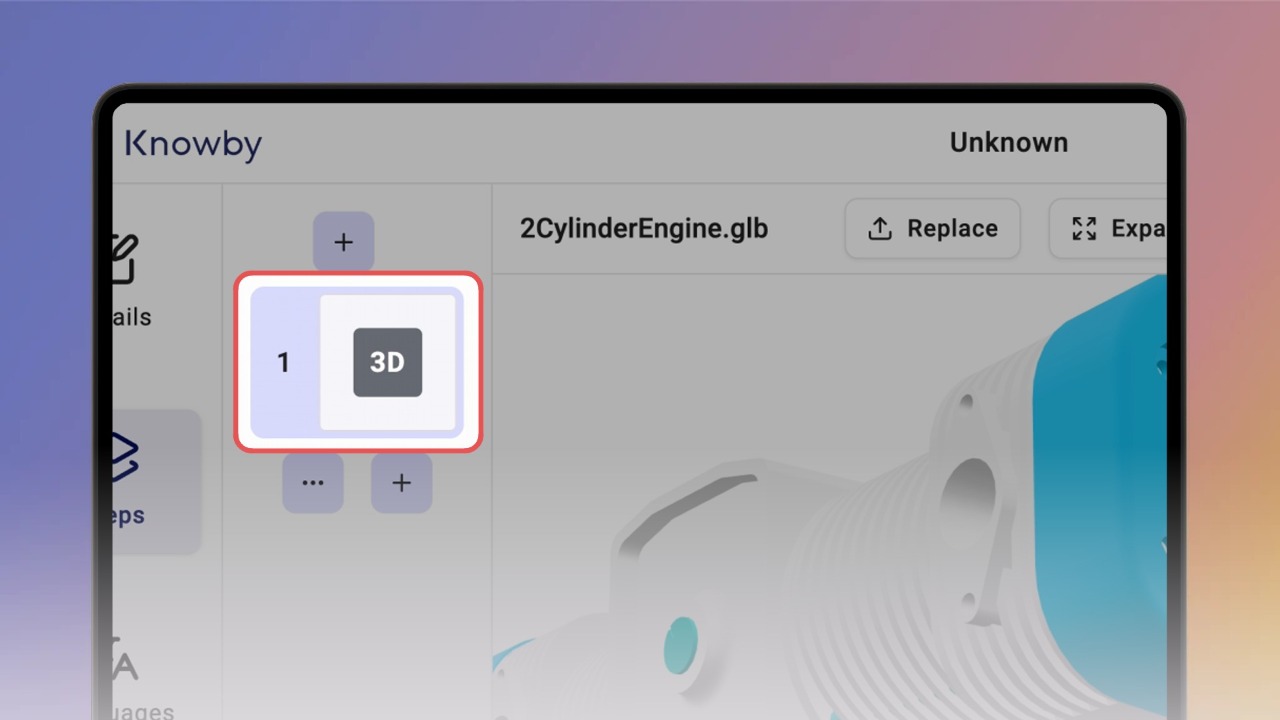
A 3D step shows an interactive model instead of a photo. Anyone viewing the knowby can rotate it with a mouse or finger — like holding the real part in their hands.
Formats: GLB and glTF. If you have a choice, pick GLB — one file, nothing gets lost.
Go to the Create/Edit screen and switch to the Steps tab.
Drag your GLB file into the upload area, or click Browse. Knowby recognises the file type and sets up the step for you.
Give it a spin — literally. Click and drag to rotate the model.
Expand — view it bigger.
Replace — picked the wrong file? Swap it in one click.
Add your step text as usual. The model shows what the part looks like — your text explains what to do with it.
On a computer, your team sees the model right in the step — rotate it in place, or expand it to full screen.
In public knowbys, 3D models work too. Anyone with the link can open and rotate them — no login, no account.
On a phone or tablet, the step shows an Open document button. Tapping it opens the model full screen — rotation works with a finger.

Good to know:
Need a GLB? Most 3D tools export to it — in Blender it's File → Export → glTF.
You can convert 3D models for free online using open-source tools like ThreeJS.
3D steps need an internet connection — they aren't available offline.
Print-outs and PDF exports show a link to the model instead.
Want to see it live?
Open the demo knowby and give the models a spin.